

Manage Sites in Herd
If you’ve read the Applications introduction of the Getting Started section, you are already familiar with the concept of parked paths and linked directories – but how do you use them if you have many sites and use different technologies for them?Folder structure
We recommend to put all PHP based sites in your Herd directory until you reach a point where it makes sense to split them into a folder structure that makes sense for you. This could be sites per client, or if you run different technologies like Next.js, you can serve them from a different folder vianpm run dev.
This setup keeps the Applications window clean and easy to use because you can simply unpark a directory in case that you don’t work on these sites for a few weeks.
If you don’t mind a long list of sites, you can also mark your most important sites as favorites to display them at the top.
The Applications window
You can manage your sites via the CLI or in the Applications window. Open it by clicking the Herd icon in the system tray, by right-clicking the icon and selecting “Applications” from the Herd menu, or with the global “Open applications” shortcut that you can set up in the shortcut settings.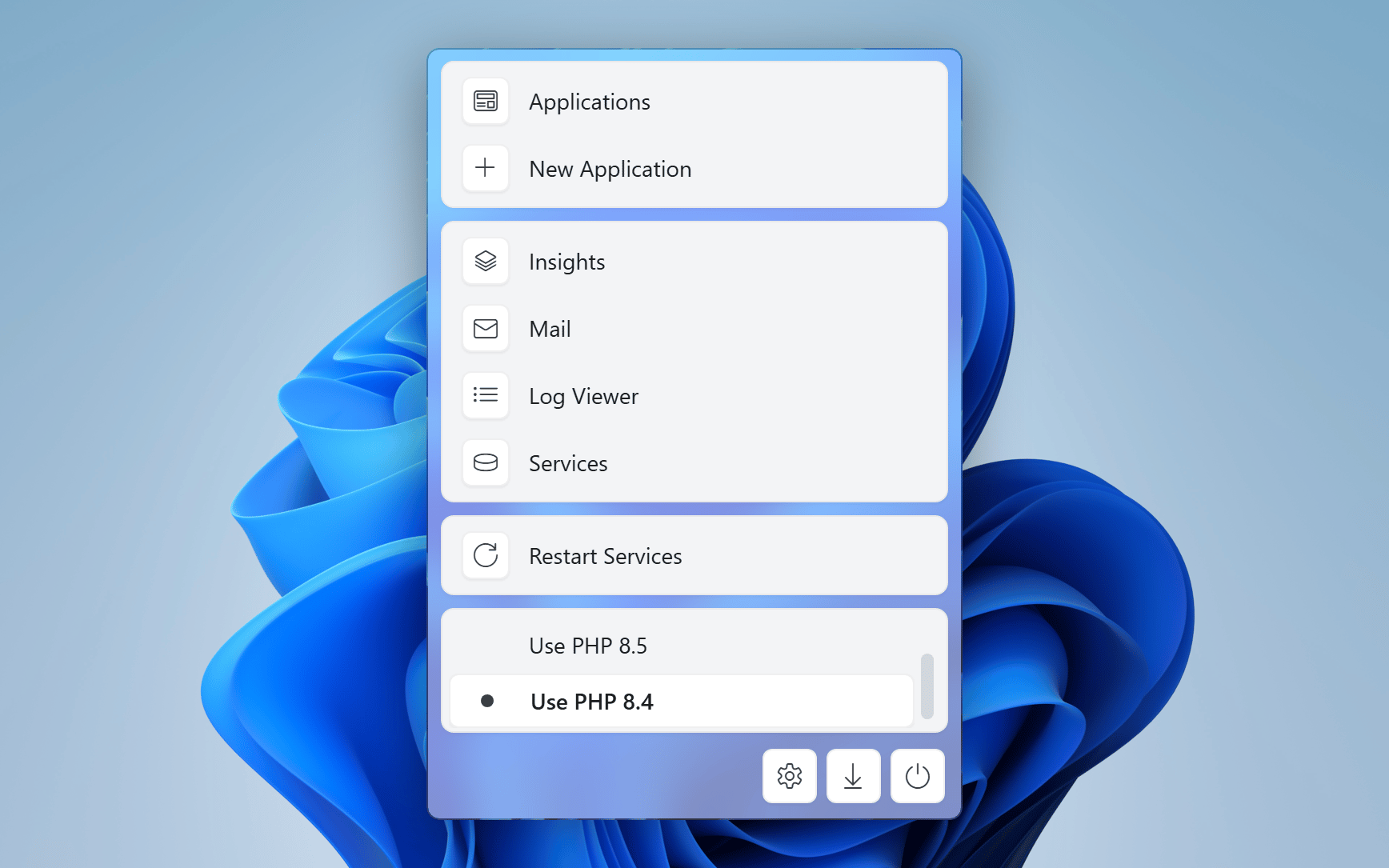
Dashboard
The Applications window opens with a dashboard. At the top, you can describe a new application and build it with AI. Below, the dashboard shows your favorite applications and your most recent applications with a preview of each site.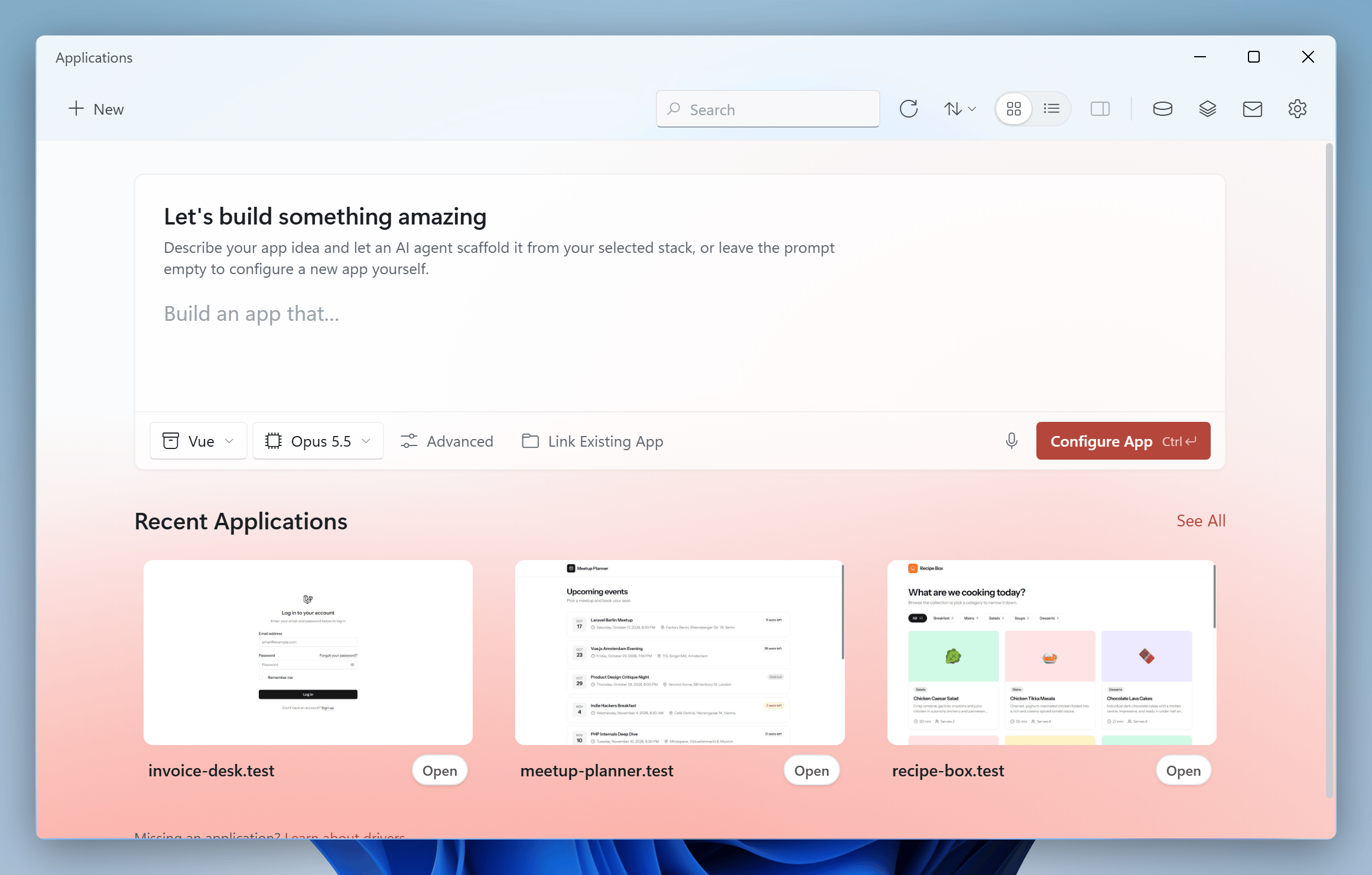
All Applications
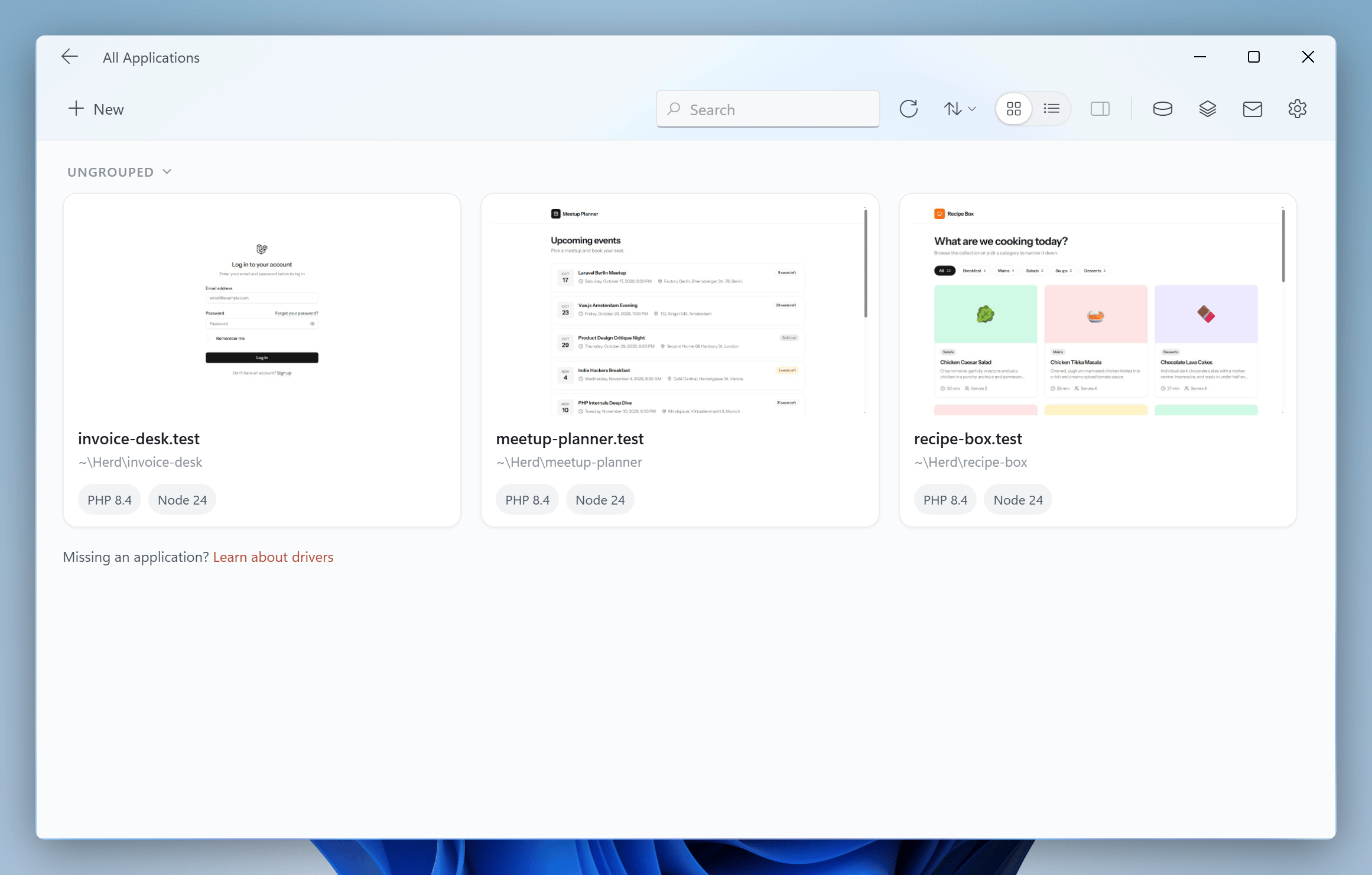
The list of all applications shows every site that Herd serves. You can switch between a grid and a list view in the toolbar and search for applications withCtrl+F. Ctrl+N opens the new application window.
Favorites and groups
You can mark an application as favorite with the star icon in the inspector. Favorites appear at the top of the dashboard and the list of all applications. If you are working with many sites at the same time and don’t want to use multiple parked directories that you add and remove when you need them, you can group sites. Right-click an application, select “Add Site To” and choose an existing group or “New Group…”. You can collapse groups, and Herd remembers which groups are collapsed. Right-click an application in a parked directory and select “Add Alias” to serve it on an additional domain.The inspector
The inspector on the right side of the Applications window shows everything about the selected application and lets you change its configuration.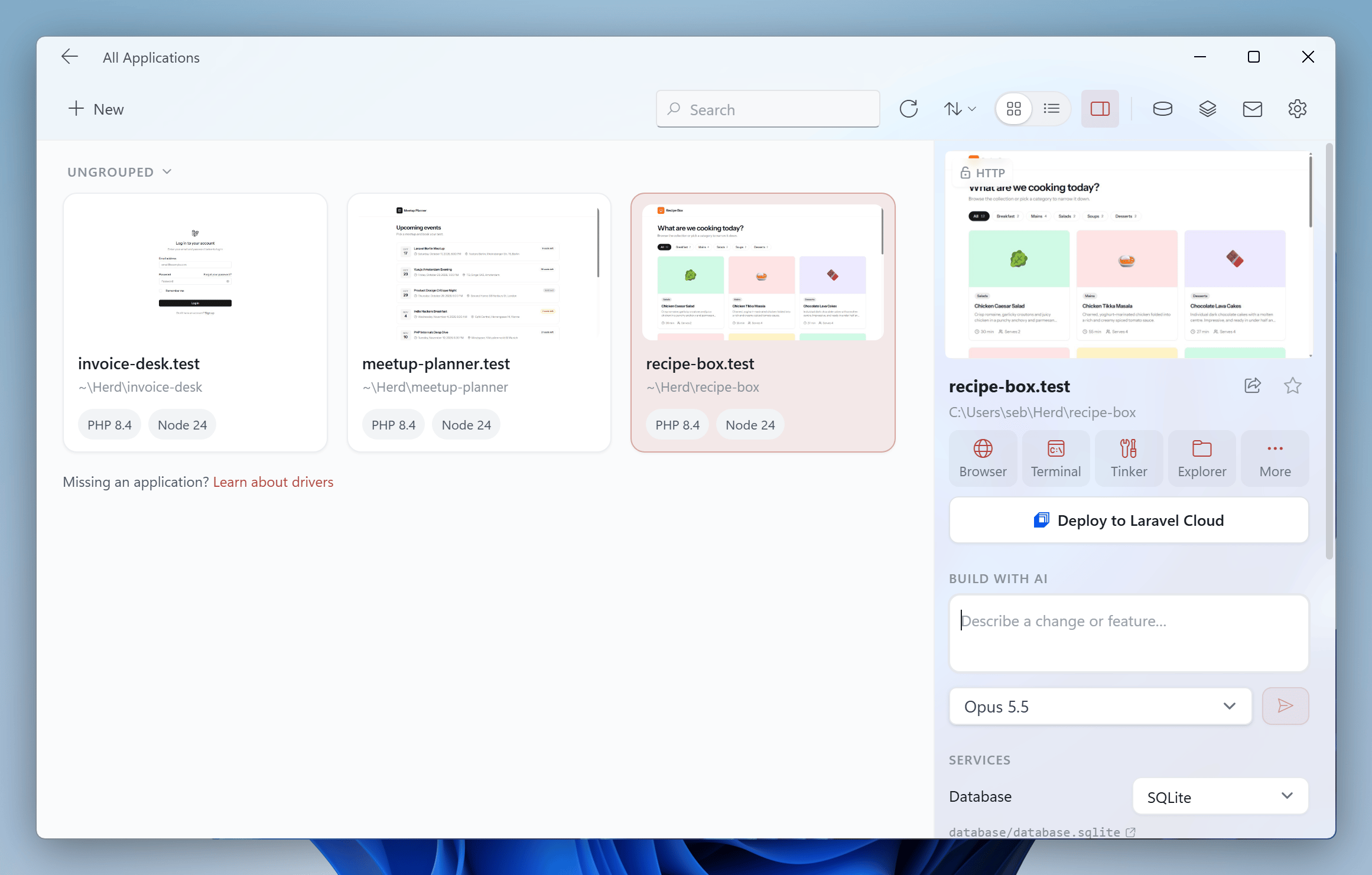
Overview
The top of the inspector shows a preview of the site, its URL and its path. Click the URL to open the site, or the path to reveal the project in the Explorer. The share button next to the URL shares the site via Expose. The “Deploy to Laravel Cloud” button ships your application to production. Learn more in the Laravel Cloud docs.Quick Actions
Quick Actions open the site in your browser, a terminal in the project directory, a Tinker(-well) session, or the project folder in the Explorer. The “More” button opens the project in your editor. Right-click the Quick Actions to choose which actions Herd shows in the row, and drag an action to change the order.Open in IDE
You can quickly open the site in your IDE with the “Open in Editor” Quick Action or by running theherd edit command in your CLI. You can set your default IDE in the Herd Settings under the “General” tab. Currently, PhpStorm, VS Code, Cursor, Zed, and Sublime Text are supported.
Please note that site-wide opening is not available for Sublime Text due to limitations with its protocol handler. However, you can still open individual files in Sublime Text, such as when clicking on a location in the Insights window.
For PhpStorm, make sure to install the latest version of the PhpStorm protocol handler. For Sublime Text, the subl-protocol is required.
Build with AI
If Herd Studio is enabled, you can describe a change or a feature and send it to a coding agent right from the inspector. See Build with AI. The “Workspaces” section below lists all workspaces of the site.Services
Herd Pro users can switch the database, queue, cache and broadcasting services of a Laravel application with a single click. Learn more in Per-Site Services.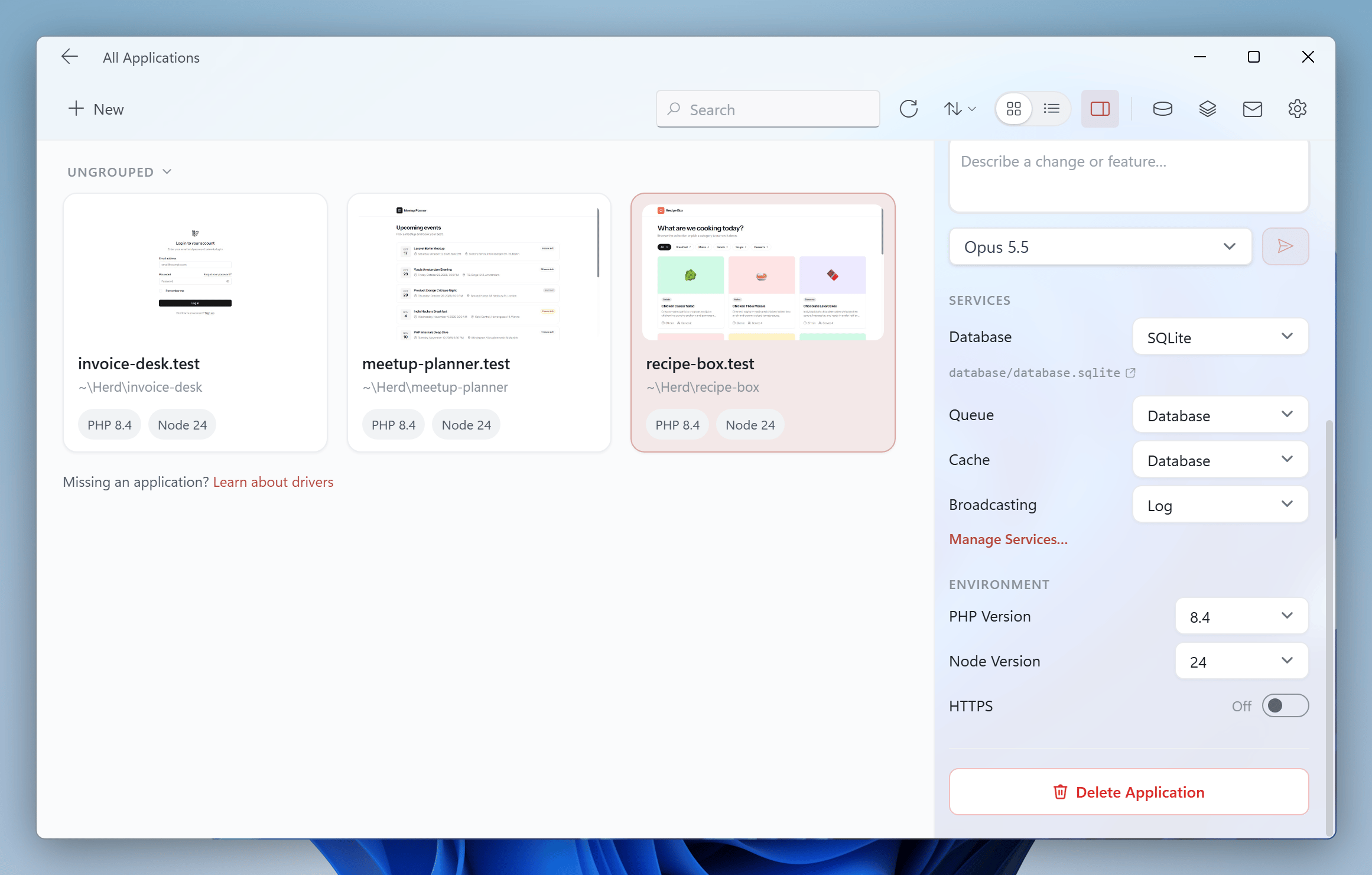
Environment
The environment section lets you choose the PHP version and the Node.js version of the site, and serve it via HTTPS. Selecting a PHP version isolates the site to this version. This tells Herd to serve this site with a specific PHP version and not to use the global configuration that you apply in the settings. If you select a specific Node.js version, Herd creates an.nvmrc file in your project directory. This tells your terminal to switch to the selected Node and NPM version automatically.
The HTTPS toggle secures the site with a local TLS certificate.
Deleting sites
The button at the bottom of the inspector deletes a parked application and moves its folder to the Recycle Bin. Herd also deletes the workspaces of the application. For linked applications, the button unlinks the application from Herd and keeps its files.Best Practices
It’s a good practice to name your local sites like your domains and subdomains to easily access them in your browser. As an example, the Herd website usually lives in the directory~/Code/herd.laravel.com so that it’s accessible via http://herd.laravel.com.test. The Laravel website is in the directory ~/Code/laravel.com, etc.
Directory names must not start with
www.. Herd strips this part to allow you to access your local site via www.laravel.com and laravel.com.