

Herd Studio
Herd Studio brings coding agents and your everyday development tools into the browser, right next to the site you’re working on. You can ask an agent to build a feature, edit code, review changes, run a terminal, watch your dev server and deploy – without leaving your local.test site.
Herd Studio runs entirely on your PC. It works with the AI providers and coding agents that you already use, so you can connect your own AI provider and start building. Don’t have an AI subscription? Herd Studio comes with free models via opencode, so you can start without paying for AI at all.
Enabling Herd Studio
You can turn Herd Studio on and off in the AI tab of the Herd settings with the “Enable Herd Developer Tools” toggle. You can also enable it from the What’s New tour when you update to Herd 2. When Herd Studio is enabled, Herd injects a small “Edit with Herd” badge into every page of your local.test sites. This works for all sites that Herd serves, not only Laravel applications. Clicking the badge opens Herd Studio for that site.
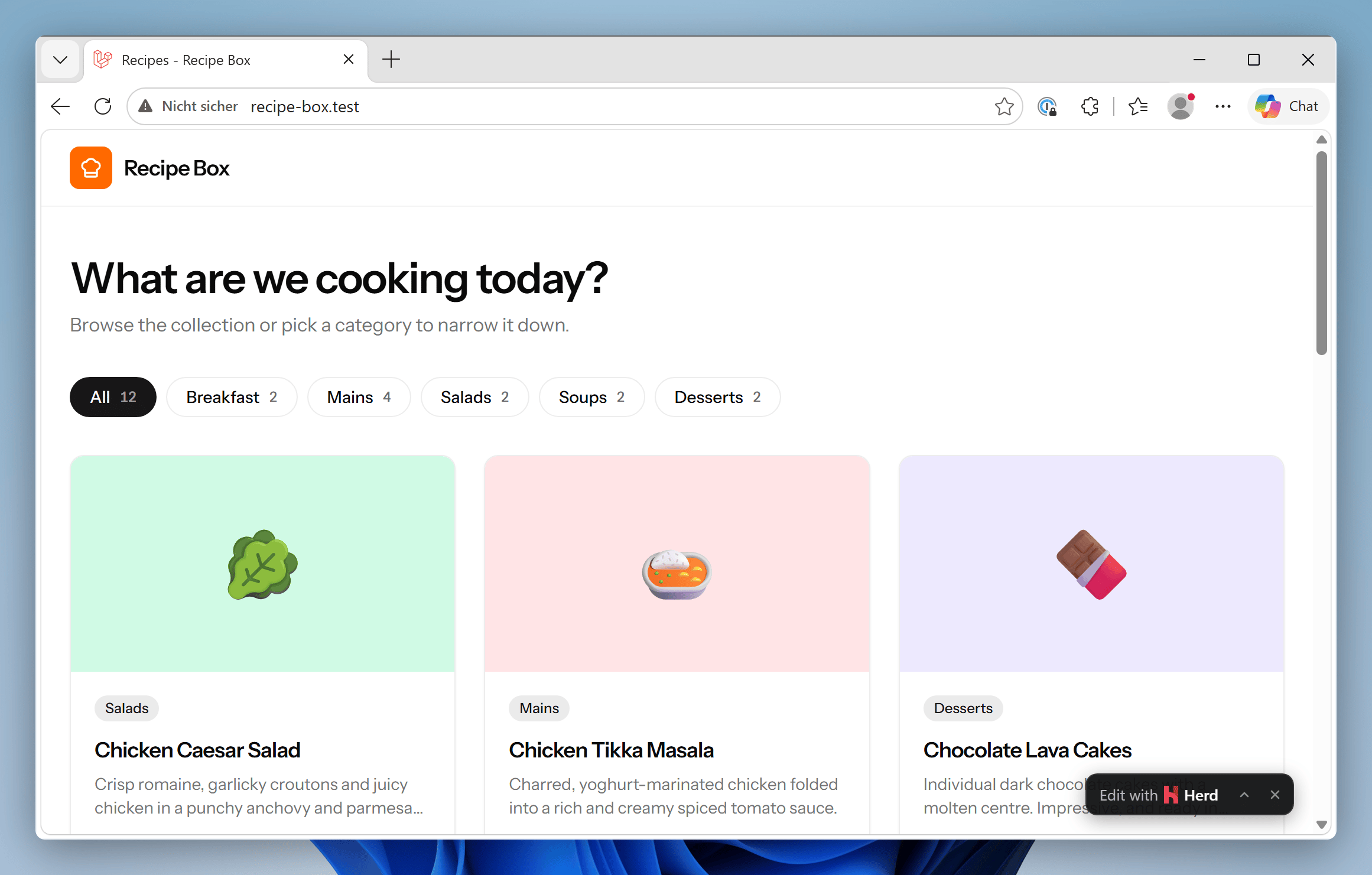
/herd-studio URL of a site and the herd studio command keep working, so you can still open Herd Studio when you need it.
Opening Herd Studio
There are several ways to open Herd Studio for a site:- Click the “Edit with Herd” badge on any page of the site.
- Visit
/herd-studioon the site, for examplehttps://my-app.test/herd-studio. - Click “Open” on a site in the Applications window or double-click the site. With Herd Studio enabled, this opens the site in Herd Studio.
- Run
herd studioin your project directory, orherd studio my-appfrom anywhere.
What’s inside Herd Studio
Herd Studio shows a live preview of your site next to a set of tools for the site: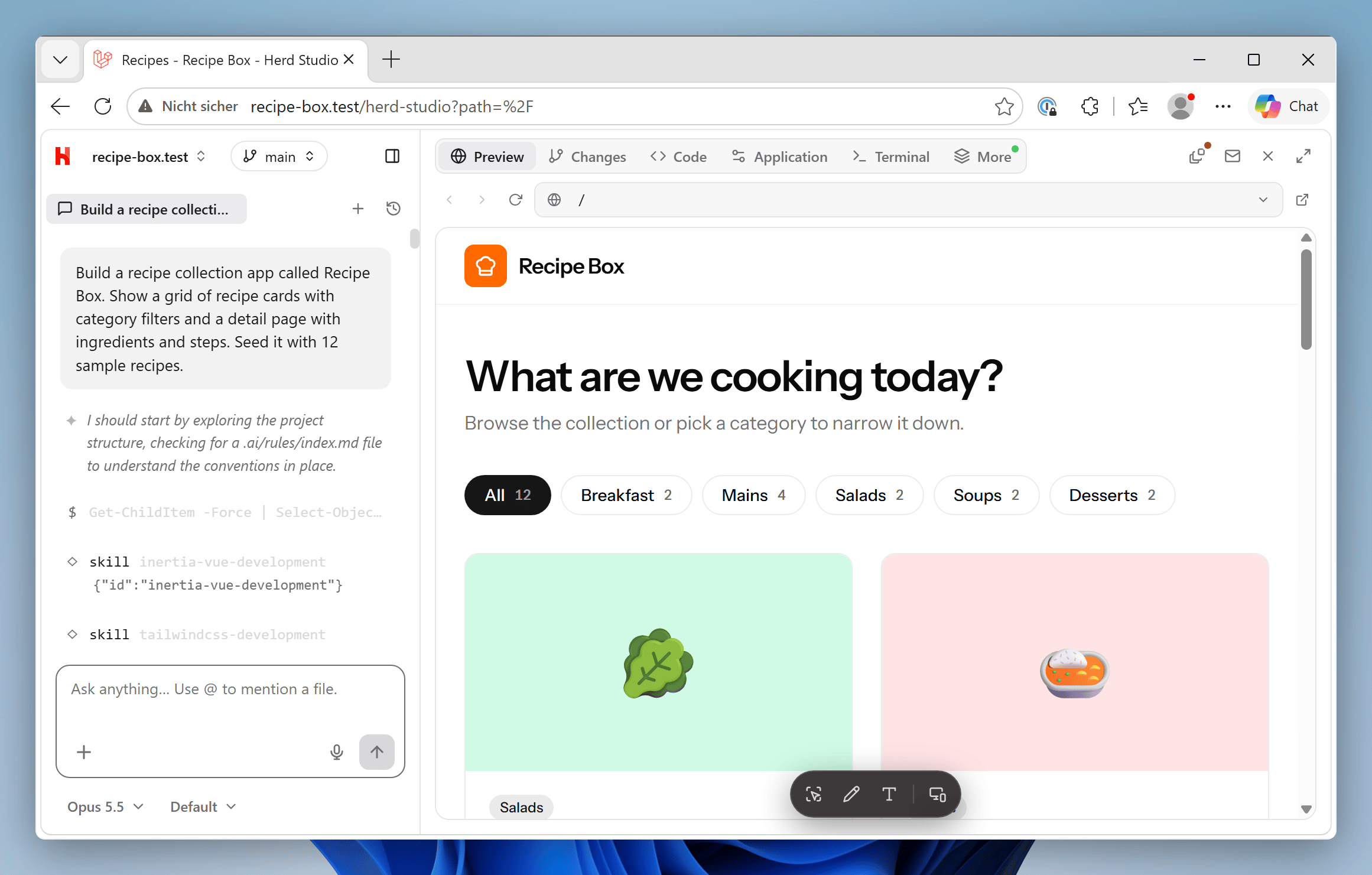
When your Laravel application throws an exception, Herd Studio shows the latest exception of the site and lets you hand it to an agent.
From Herd Studio, you can also start workspaces – isolated copies of your site on their own branch and domain – so that several agents can work in parallel without getting in each other’s way.
Settings
The AI tab of the settings contains all options for Herd Studio: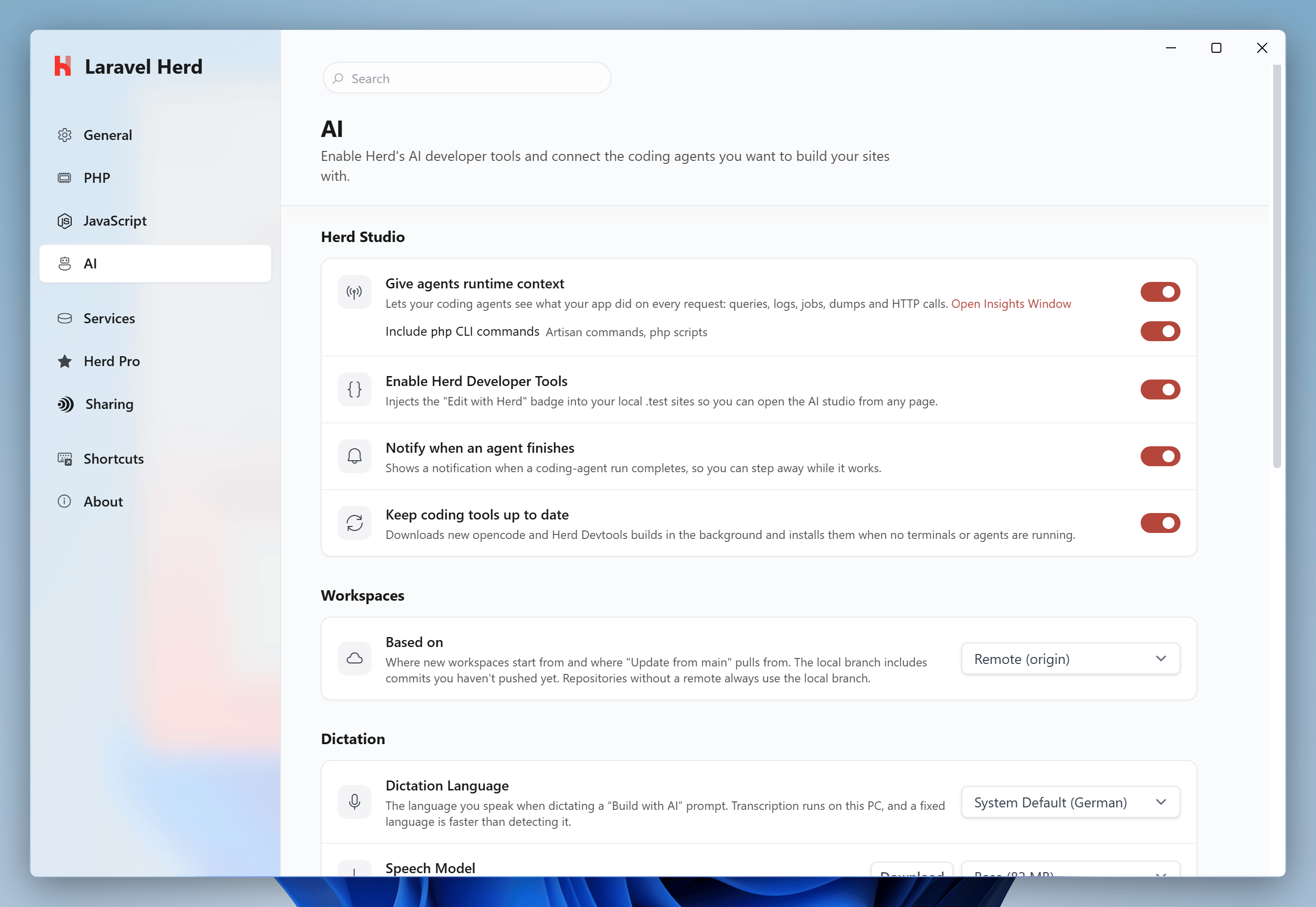
- Enable Herd Developer Tools: shows or hides the “Edit with Herd” badge on all sites.
- Notify when an agent finishes: shows a Windows notification when an agent run completes.
- Keep coding tools up to date: downloads updates for the bundled coding tools in the background.
- Workspaces: choose whether new workspaces start from the remote (
origin) or from your local branch. - Dictation: select the language and the speech model for dictating prompts.
- AI Providers: connect the AI providers that you want to use. See AI Providers.
Updates
Herd Studio and its coding tools update independently from Herd itself. Herd checks for updates shortly after launch, once a day, and when your PC wakes up. To avoid interrupting your work, Herd installs updates for the coding tools only when no terminals or agents are running. If an update waits for more than three days, Herd shows a notification. Updates to the Herd Studio interface apply right away, and open Herd Studio tabs offer a reload. You can turn off automatic updates with the “Keep coding tools up to date” setting.Files and ports
Herd stores the Herd Studio tools and data in its configuration directory:127.0.0.1:4421 and only accepts local connections. If another application uses this port, Herd Studio can’t connect to its agents. The bundled opencode server runs on a random local port that Herd picks on every start.