

Applications
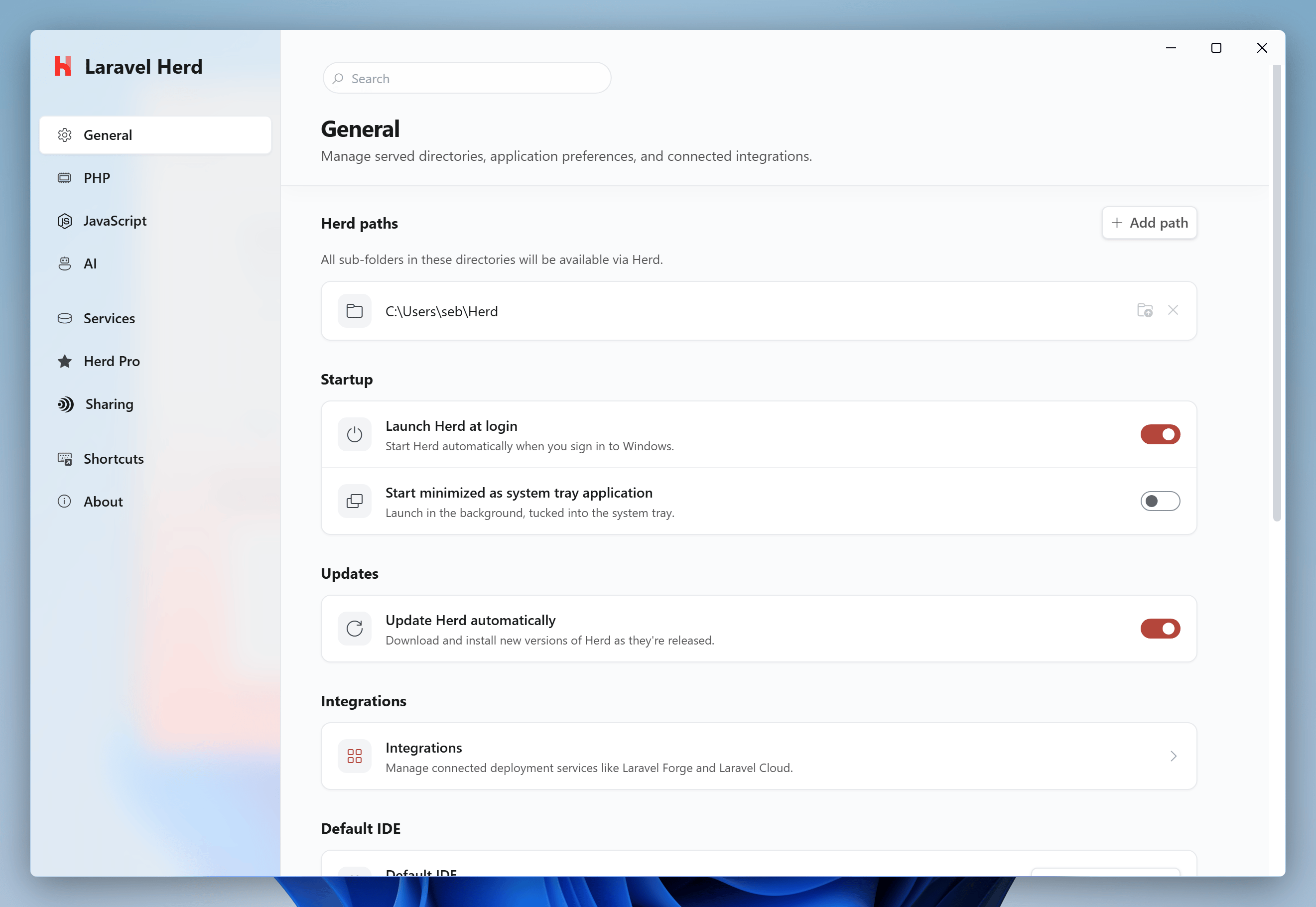
Herd uses the concept of parked paths and linked directories for serving applications. You can access every application in a parked path viahttp://<directory-name>.test. By default, Herd will automatically park the %USERPROFILE%\Herd directory for you. Any PHP application in this directory is automatically available via its .test domain. If you have other locations for your projects, you can add them as parked paths in the general settings or link individual projects as a linked directory.
Creating your first application
The fastest way to manage your applications and to create new ones is the command line.Command Prompt (CMD)
Powershell
herd edit command even opens your favorite IDE if you’ve set up the protocols.
Linking an existing application
You can link an existing application with a specific domain via thelink command from any directory on your machine. The link command uses the directory name as domain name if you don’t set additional parameters.
Command Prompt (CMD)
Powershell
your-project.test and custom-domain.test. This is useful if you want to use an application from multiple domains, for example in multi-tenancy environments or if you store all your projects across multiple directories.
Via the GUI
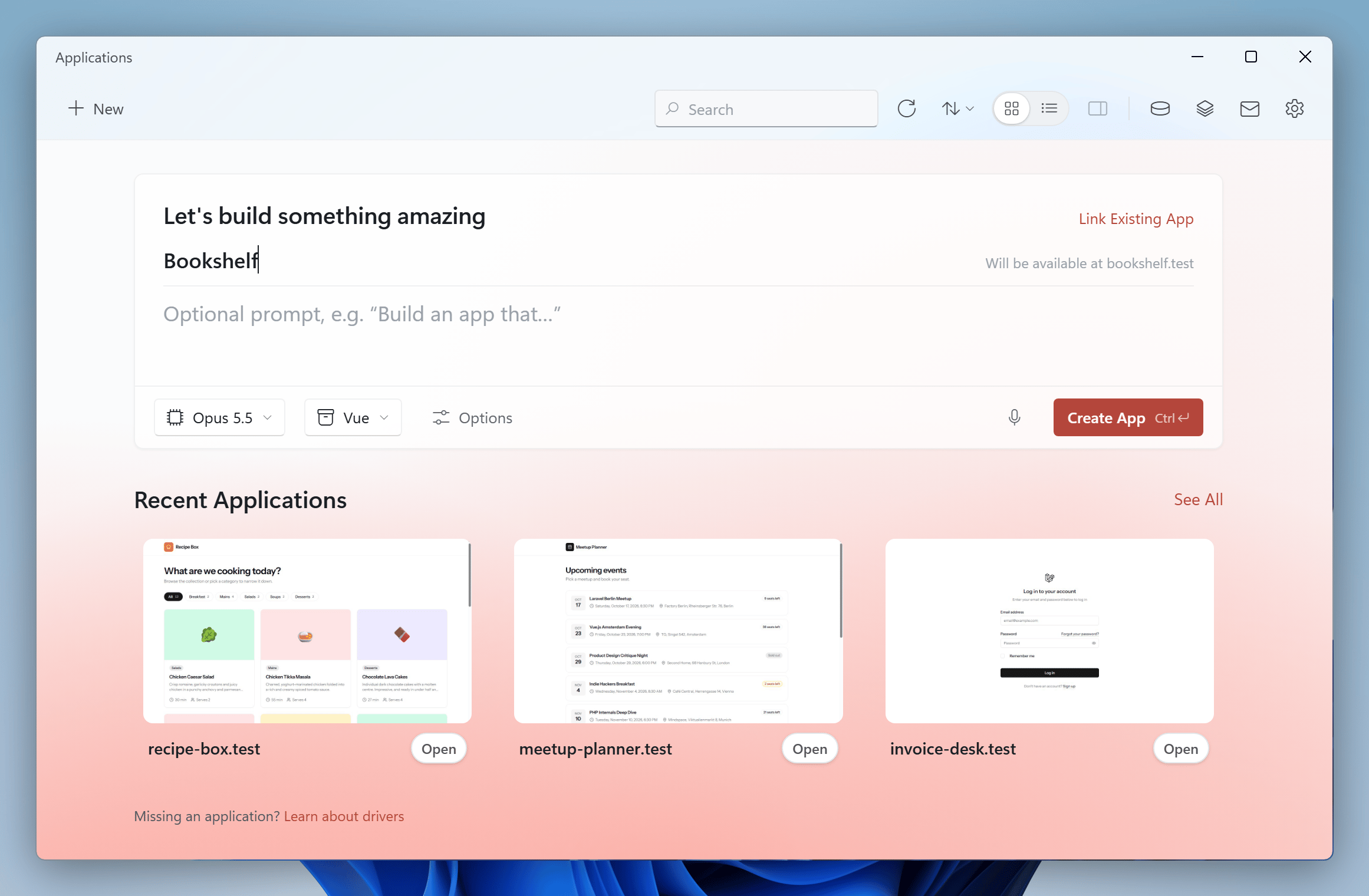
If you prefer creating and linking applications via a graphical user interface, use the composer at the top of the Applications window. Select “New Application” from the menu of the Herd system tray icon, click “New” in the toolbar of the Applications window or pressCtrl+N there – all of them take you to the composer.
Enter a name for your application. Herd shows whether the .test domain for this name is still available. Then select a starter kit – No Starter Kit, React, Vue, Svelte or Livewire – and click “Create App” or press Ctrl+Enter. Herd creates a fresh Laravel application with this starter kit in your Herd directory. You don’t need AI for this: as long as the prompt field stays empty, Herd only runs the Laravel installer.
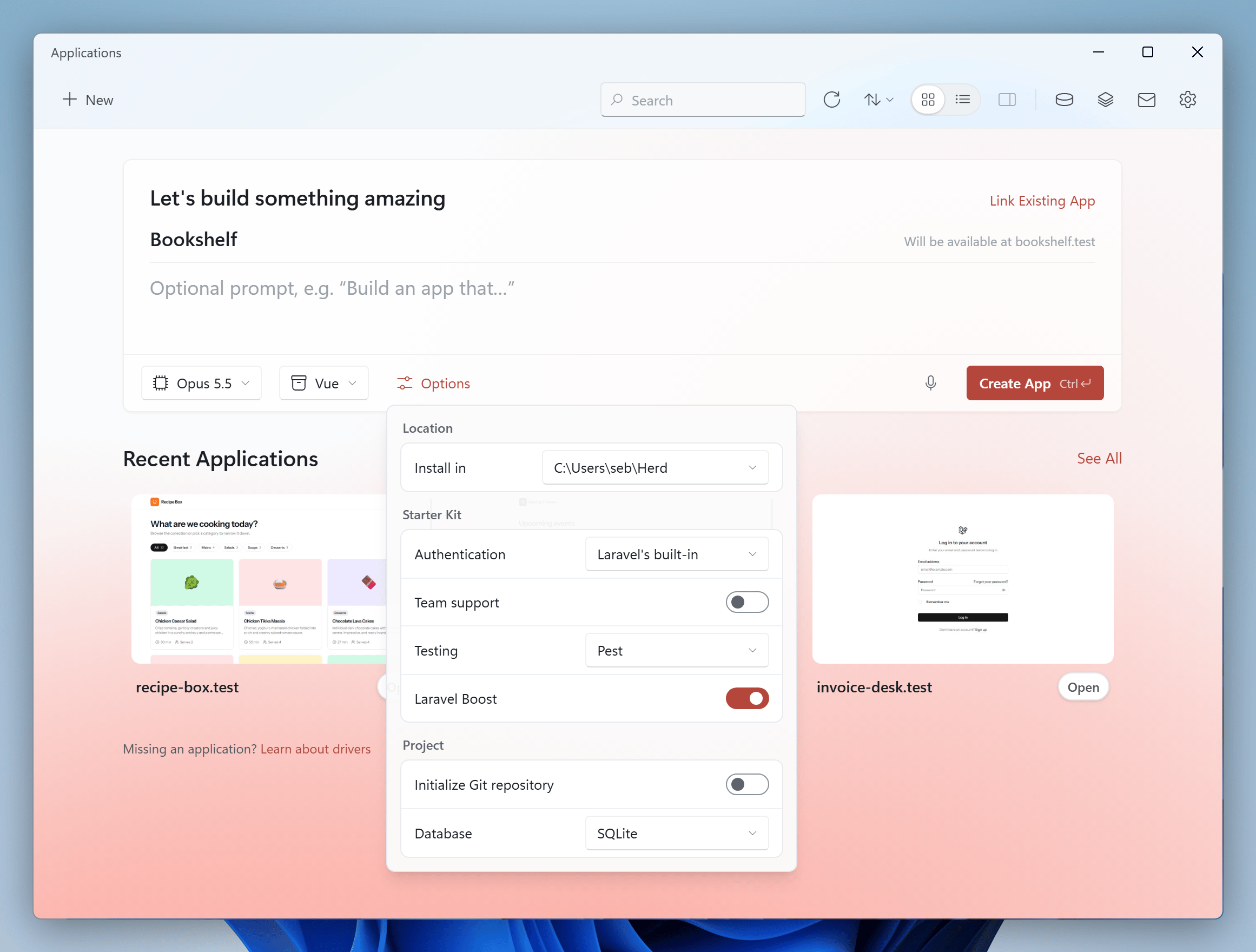
vendor/package-name.
If you describe your application in the prompt field, the button changes to “Build” and a coding agent builds the application for you.
Click “Link Existing App” to add an existing project from any directory on your machine to Herd.
Unlinking an existing application
You may remove a previously created link, by using theunlink command from any directory on your machine. The unlink command uses the directory name as domain name if you don’t set additional parameters.