

Changing PHP settings
The values that most developers change are the memory limit and the max upload size. You can modify them in the settings and don’t need to go deep into configuration files.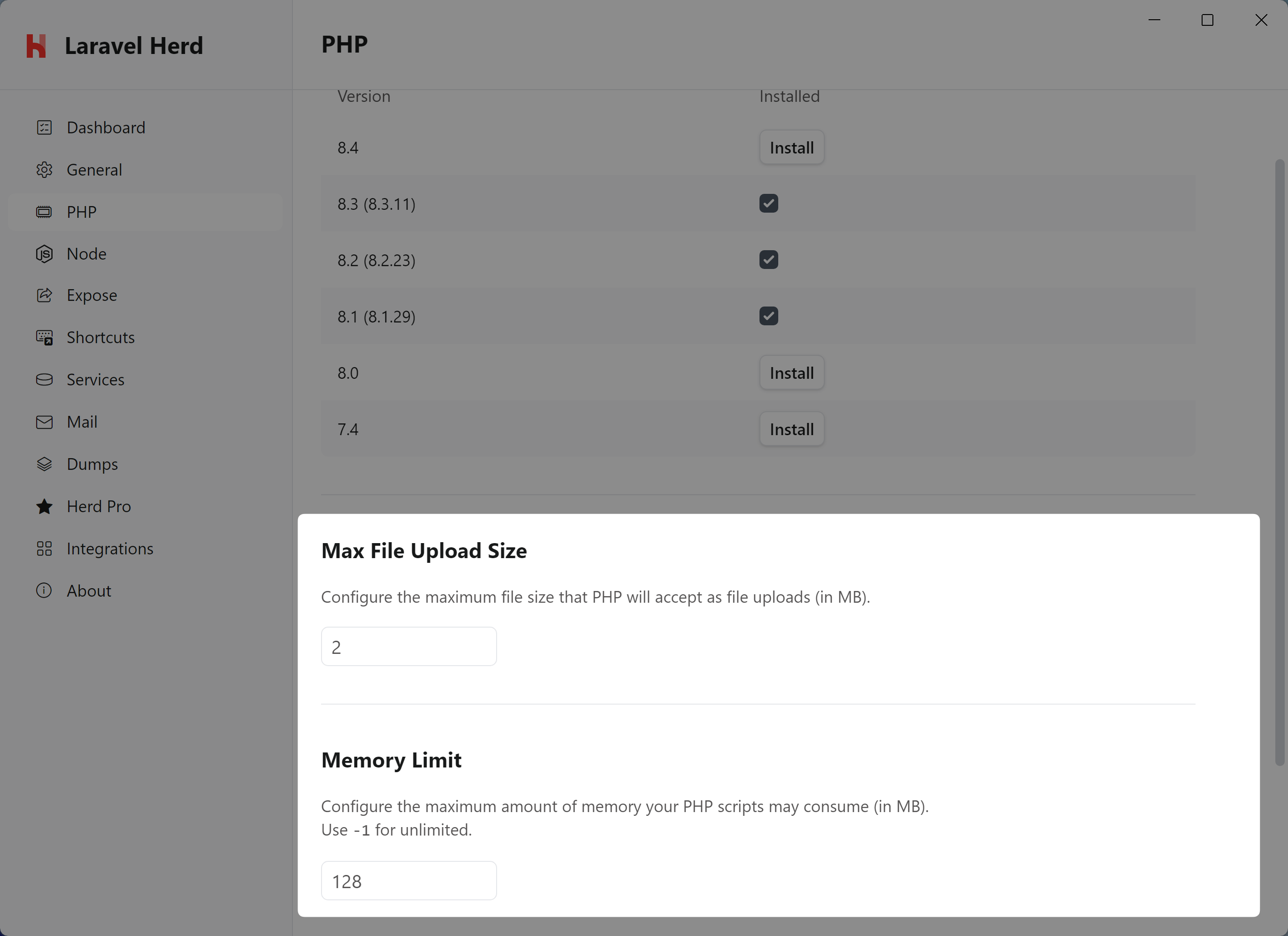
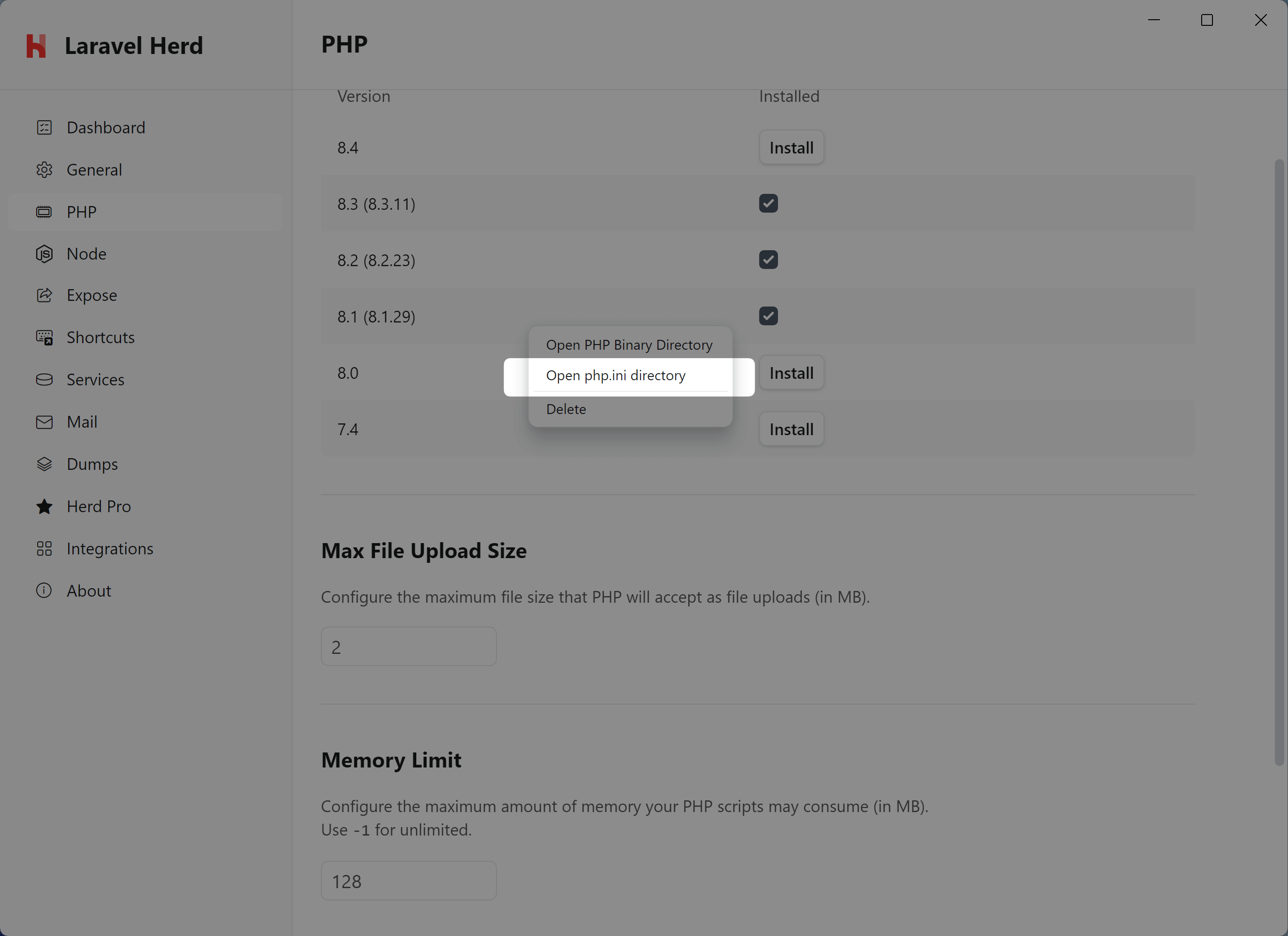
php.ini file located at
%USERPROFILE%\.config\herd\bin\<version>\php.ini.
You can edit this file to change the PHP settings for the specified PHP versions.
If you want to quickly access your php.ini file via the CLI, you may use the
herd ini command.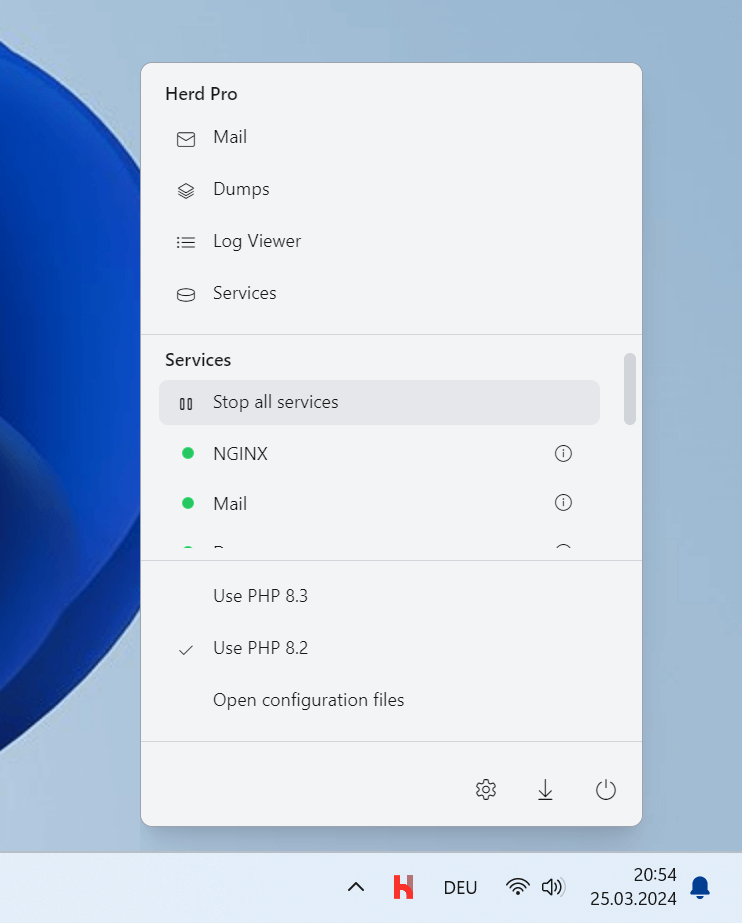
herd restart command in the terminal.
Improving CLI Performance with OPcache JIT
By default, PHP ships with the JIT (Just-In-Time) compiler effectively disabled becauseopcache.jit_buffer_size is set to 0. Enabling JIT can significantly improve performance for CLI-heavy workloads like running tests, Artisan commands, or static analysis tools.
To enable JIT, open your php.ini file and add the following settings:
Herd already enables
opcache.enable_cli=1 by default, so you only need to configure the JIT buffer size and mode.