> ## Documentation Index
> Fetch the complete documentation index at: https://herd.laravel.com/docs/llms.txt
> Use this file to discover all available pages before exploring further.
# Manage Node.js
# Managing Node.js versions
Herd ships with [nvm](https://github.com/nvm-sh/nvm), the Node version manager, and allows the management of multiple [Node.js](https://nodejs.org/) versions on your machine. By default, Herd automatically installs the latest available version of Node.js for you.
Herd requires a specific nvm version and can't use existing nvm installations. If you are migrating from a previous nvm setup, please consult the [Troubleshooting](#troubleshooting) section if it doesn't work as expected.
## Via the GUI
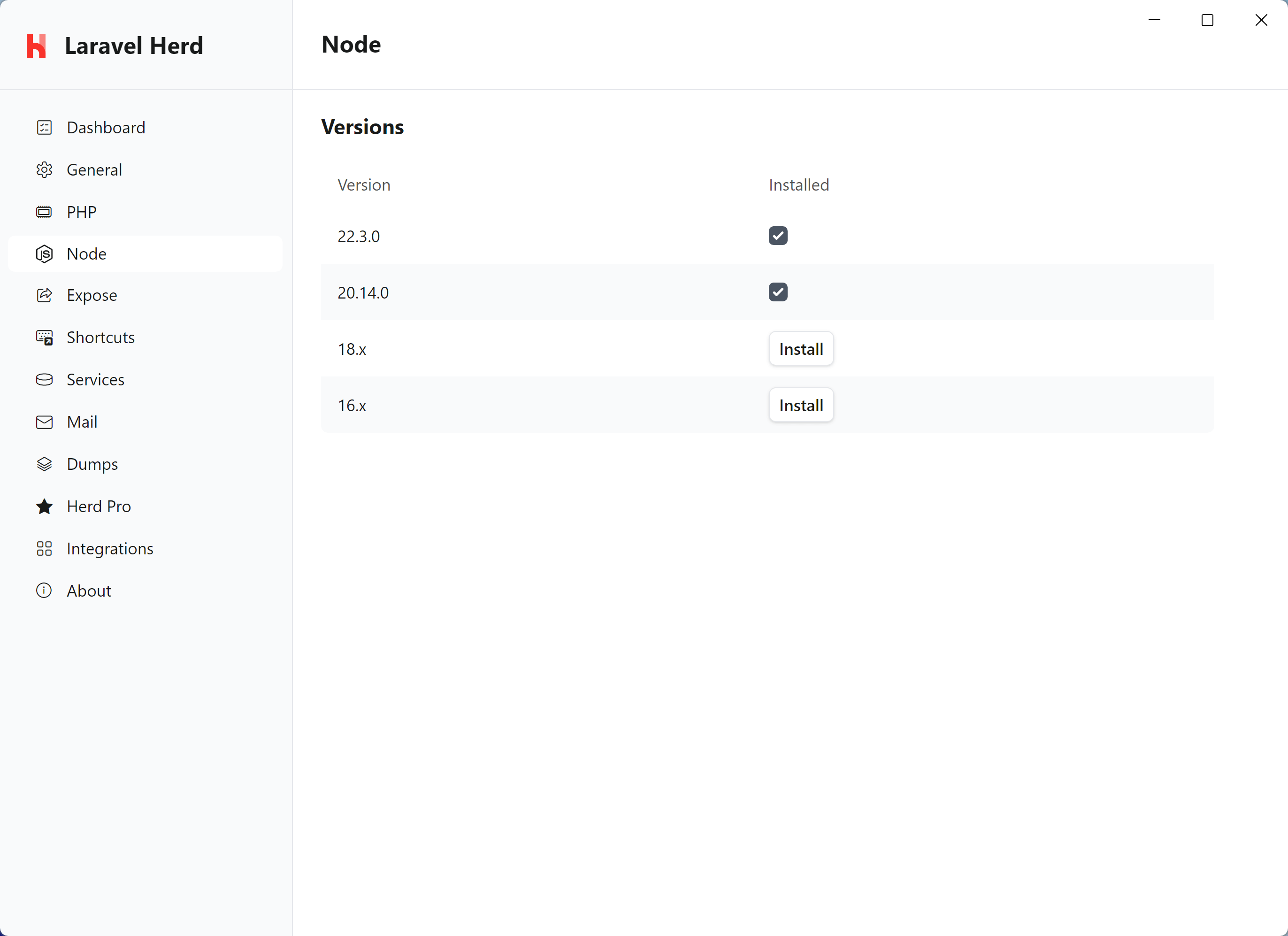
You may install and update the Node.js versions on your machine via the Herd GUI. Simply click on the button and Herd will take care of the rest.
 ## Via the CLI
You can use `nvm` on your command line to install, update and switch between Node.js versions any time. To switch to a different version, simply enter `nvm use VERSION` and nvm runs all required commands to change the version and make it accessible in your terminal.
For more information about nvm, take a look at the [official nvm documentation](https://github.com/nvm-sh/nvm?tab=readme-ov-file#usage).
### Commands that you might use regularly
```bash theme={null}
# Install node 20
nvm install 20
# Uninstall node 20
nvm uninstall 20
# Switch to node 20
nvm use 20
# Switch to the isolated node version for the current directory
nvm use
## Display all commands
nvm help
```
## Uninstalling Node.js
If you want to uninstall a specific version, either consult the [official nvm documentation](https://github.com/nvm-sh/nvm) or run the uninstall command from your terminal.
```
nvm uninstall VERSION
```
You can verify which versions you have with the command `nvm list`. So if you want to uninstall node 18.20.4, run `nvm uninstall 18.20.4`.
## Uninstalling nvm
If you want to uninstall your previous non-Herd nvm, you have to make sure to remove the related environment variables `NVM_HOME` and `NVM_SYMLINK`. This also applies if you remove nvm that ships with Herd.
After restarting Herd, the nvm configuration in the settings displays the button to install the nvm version that ships with Herd and that manages local Node.js versions via the GUI.
## Troubleshooting
Herd parses command output to determine your current Node.js version. If it can't parse the output because there is output that it doesn't understand, or you are using an unsupported shell, it displays `Unknown` for your node version in the sites list.
## Via the CLI
You can use `nvm` on your command line to install, update and switch between Node.js versions any time. To switch to a different version, simply enter `nvm use VERSION` and nvm runs all required commands to change the version and make it accessible in your terminal.
For more information about nvm, take a look at the [official nvm documentation](https://github.com/nvm-sh/nvm?tab=readme-ov-file#usage).
### Commands that you might use regularly
```bash theme={null}
# Install node 20
nvm install 20
# Uninstall node 20
nvm uninstall 20
# Switch to node 20
nvm use 20
# Switch to the isolated node version for the current directory
nvm use
## Display all commands
nvm help
```
## Uninstalling Node.js
If you want to uninstall a specific version, either consult the [official nvm documentation](https://github.com/nvm-sh/nvm) or run the uninstall command from your terminal.
```
nvm uninstall VERSION
```
You can verify which versions you have with the command `nvm list`. So if you want to uninstall node 18.20.4, run `nvm uninstall 18.20.4`.
## Uninstalling nvm
If you want to uninstall your previous non-Herd nvm, you have to make sure to remove the related environment variables `NVM_HOME` and `NVM_SYMLINK`. This also applies if you remove nvm that ships with Herd.
After restarting Herd, the nvm configuration in the settings displays the button to install the nvm version that ships with Herd and that manages local Node.js versions via the GUI.
## Troubleshooting
Herd parses command output to determine your current Node.js version. If it can't parse the output because there is output that it doesn't understand, or you are using an unsupported shell, it displays `Unknown` for your node version in the sites list.