> ## Documentation Index
> Fetch the complete documentation index at: https://herd.laravel.com/docs/llms.txt
> Use this file to discover all available pages before exploring further.
# Laravel Cloud
# Laravel Cloud
Herd integrates with [Laravel Cloud](https://cloud.laravel.com) and lets you ship your local application to production with a single click. Herd uses the Laravel Cloud CLI under the hood, so it creates the application on Laravel Cloud for you if it doesn't exist yet and deploys it right away.
## Connect Herd with your Laravel Cloud account
Open the settings, go to "General" and select "Integrations". Click "Connect Service" and select Laravel Cloud. Herd opens your browser to sign in to Laravel Cloud. Once you confirm the connection, you can close the browser tab and return to Herd.
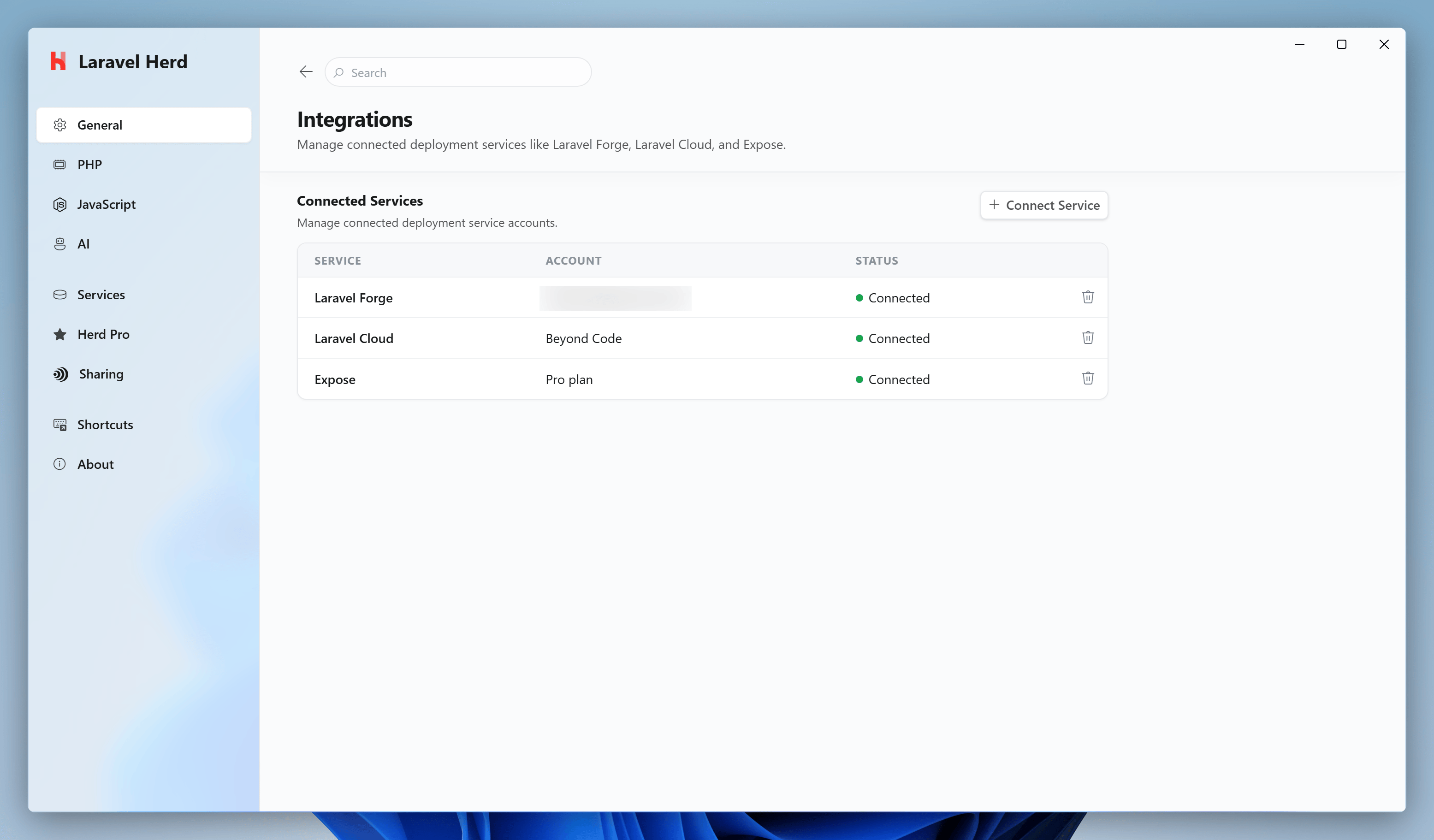 Herd connects to every Laravel Cloud organization of your account and lists each organization separately in the integrations list.
You can also start the connection directly from the "Deploy to Laravel Cloud" button of a site. If you aren't connected yet, Herd opens the sign-in page in your browser first and starts the deployment as soon as your account is connected.
Herd also writes the tokens to the configuration of the Laravel Cloud CLI in `%USERPROFILE%\.config\cloud\config.json`. This way, you can use the `cloud` command in your terminal with the same account.
## Deploying a site
Select a site in the [Applications window](/docs/windows/sites/managing-sites) and click "Deploy to Laravel Cloud" in the inspector. You can also deploy from the Cloud tab in [Herd Studio](/docs/windows/herd-studio/overview).
Herd starts the deployment right away. If the site isn't on Laravel Cloud yet, Herd creates a new Laravel Cloud application for the project and deploys it. When the Laravel Cloud CLI needs more information, like the region or the application name, Herd asks you directly in the deployment flyout. Cancelling a question stops the deployment.
During the deployment, Herd shows the current step and the progress through the three stages Prepare, Build and Release. Click "Show output" to see the full output of the Laravel Cloud CLI, or "Stop" to cancel the deployment. You can close the flyout while Herd deploys your site in the background.
Once the deployment finishes, Herd shows the URL of your live application. From now on, the "Deployment" section in the inspector of the site shows the Laravel Cloud application and a "Visit Site" button. To deploy again, click "Deploy to Laravel Cloud" once more.
If you also connected [Laravel Forge](/docs/windows/integrations/laravel-forge), a switch next to the deploy button lets you choose between Laravel Cloud and Laravel Forge.
Herd detects that a site is on Laravel Cloud by its GitHub repository. Make sure that your project has a GitHub `origin` remote and that Laravel Cloud has access to the repository.
## Troubleshooting
If a deployment fails, Herd shows the reason that Laravel Cloud reported. The full output of the Laravel Cloud CLI has more details.
* **Laravel Cloud is rate limiting requests**: wait a few minutes and deploy again.
* **Laravel Cloud returned an error**: this often happens when the Laravel Cloud GitHub app can't access your repository. Check the repository permissions of the GitHub app.
* **The Laravel Cloud CLI could not be located**: the Laravel Cloud CLI requires PHP 8.2 or later. Install one of these PHP versions in the PHP settings.
Herd connects to every Laravel Cloud organization of your account and lists each organization separately in the integrations list.
You can also start the connection directly from the "Deploy to Laravel Cloud" button of a site. If you aren't connected yet, Herd opens the sign-in page in your browser first and starts the deployment as soon as your account is connected.
Herd also writes the tokens to the configuration of the Laravel Cloud CLI in `%USERPROFILE%\.config\cloud\config.json`. This way, you can use the `cloud` command in your terminal with the same account.
## Deploying a site
Select a site in the [Applications window](/docs/windows/sites/managing-sites) and click "Deploy to Laravel Cloud" in the inspector. You can also deploy from the Cloud tab in [Herd Studio](/docs/windows/herd-studio/overview).
Herd starts the deployment right away. If the site isn't on Laravel Cloud yet, Herd creates a new Laravel Cloud application for the project and deploys it. When the Laravel Cloud CLI needs more information, like the region or the application name, Herd asks you directly in the deployment flyout. Cancelling a question stops the deployment.
During the deployment, Herd shows the current step and the progress through the three stages Prepare, Build and Release. Click "Show output" to see the full output of the Laravel Cloud CLI, or "Stop" to cancel the deployment. You can close the flyout while Herd deploys your site in the background.
Once the deployment finishes, Herd shows the URL of your live application. From now on, the "Deployment" section in the inspector of the site shows the Laravel Cloud application and a "Visit Site" button. To deploy again, click "Deploy to Laravel Cloud" once more.
If you also connected [Laravel Forge](/docs/windows/integrations/laravel-forge), a switch next to the deploy button lets you choose between Laravel Cloud and Laravel Forge.
Herd detects that a site is on Laravel Cloud by its GitHub repository. Make sure that your project has a GitHub `origin` remote and that Laravel Cloud has access to the repository.
## Troubleshooting
If a deployment fails, Herd shows the reason that Laravel Cloud reported. The full output of the Laravel Cloud CLI has more details.
* **Laravel Cloud is rate limiting requests**: wait a few minutes and deploy again.
* **Laravel Cloud returned an error**: this often happens when the Laravel Cloud GitHub app can't access your repository. Check the repository permissions of the GitHub app.
* **The Laravel Cloud CLI could not be located**: the Laravel Cloud CLI requires PHP 8.2 or later. Install one of these PHP versions in the PHP settings.