> ## Documentation Index
> Fetch the complete documentation index at: https://herd.laravel.com/docs/llms.txt
> Use this file to discover all available pages before exploring further.
# Build with AI
# Build with AI
Herd lets you go from an idea to a running Laravel application with a single prompt. Describe what you want to build, pick a starter kit and a model, and Herd creates the application and hands it to a coding agent that builds your idea in the background.
Before you start, [connect an AI provider](/docs/windows/herd-studio/ai-providers) or pick one of the free opencode models that ship with Herd.
## Creating a new application from a prompt
You create new applications in the composer at the top of the [Applications window](/docs/windows/sites/managing-sites). You can open it in several ways:
* Click the Herd icon in the system tray and select "New Application".
* Press the global "Open site wizard" shortcut that you can set up in the [shortcut settings](/docs/windows/advanced-usage/shortcuts).
* Press `Ctrl+N` or click "New" in the toolbar of the Applications window.
Choose a name for your application and describe it in the prompt field. Herd shows whether the `.test` domain for your name is still available. Select a starter kit – No Starter Kit, React, Vue, Svelte or Livewire – and a model, and click "Build" or press `Ctrl+Enter`.
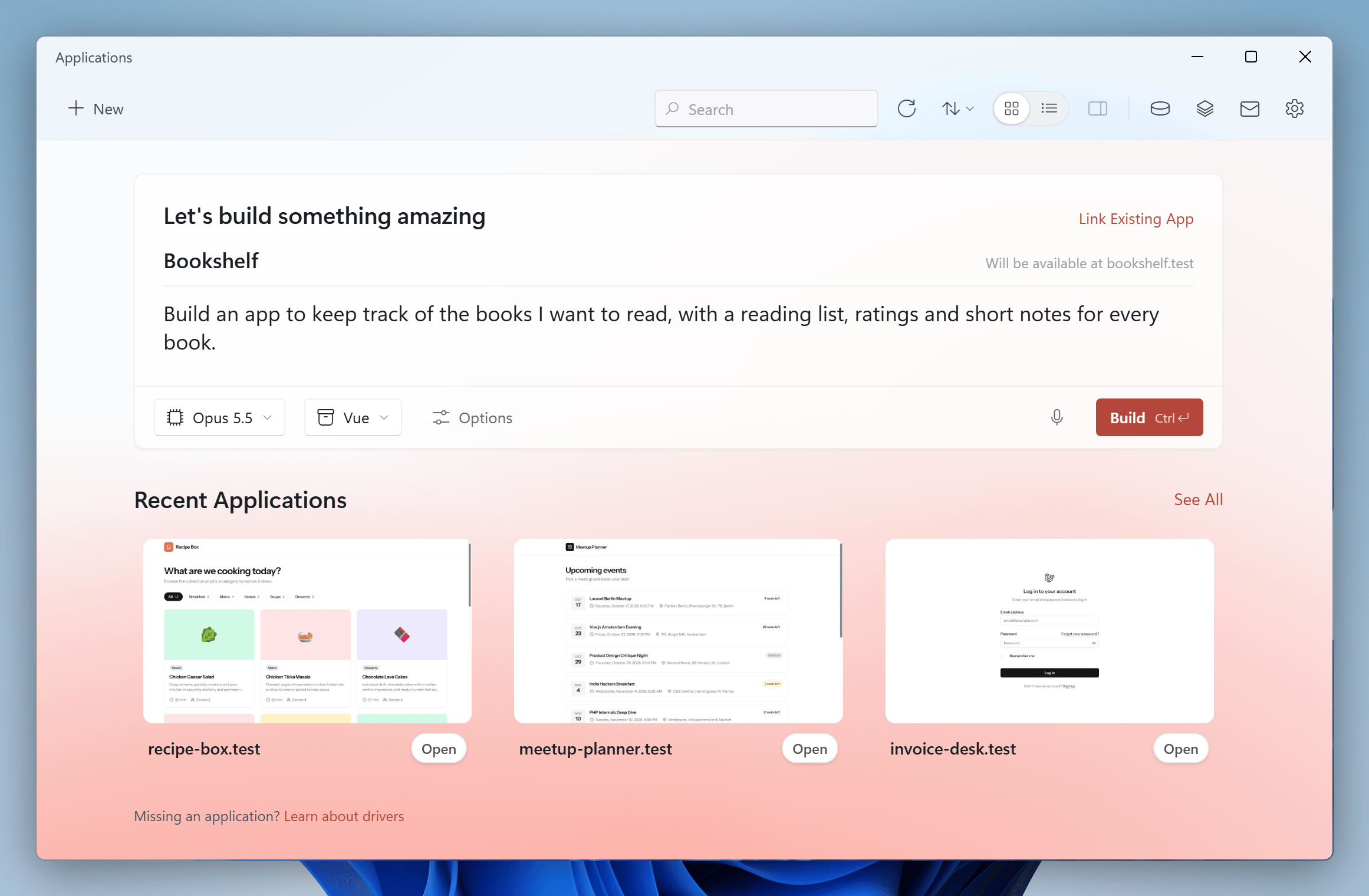 Herd creates a new Laravel application in your Herd directory and starts an agent that builds your idea. While the agent is working, you can close the window. Once the application is ready, click "Open Studio" to follow the agent's progress and continue working on the application in [Herd Studio](/docs/windows/herd-studio/overview).
Click "Options" to change the location of the application and the options of the Laravel installer before you build it. If you leave the prompt empty, the button changes to "Create App" and Herd creates a fresh application without an agent. See [Applications](/docs/windows/getting-started/applications#via-the-gui) for more details.
## Changing an existing application
To ask an agent to change an existing application, select the application in the [Applications window](/docs/windows/sites/managing-sites). The inspector on the right side contains a "Build with AI" field. Describe the change or feature, pick a model, and send the prompt with the button or with `Ctrl+Enter`. Herd starts a new agent conversation for this site that you can follow in Herd Studio.
Herd creates a new Laravel application in your Herd directory and starts an agent that builds your idea. While the agent is working, you can close the window. Once the application is ready, click "Open Studio" to follow the agent's progress and continue working on the application in [Herd Studio](/docs/windows/herd-studio/overview).
Click "Options" to change the location of the application and the options of the Laravel installer before you build it. If you leave the prompt empty, the button changes to "Create App" and Herd creates a fresh application without an agent. See [Applications](/docs/windows/getting-started/applications#via-the-gui) for more details.
## Changing an existing application
To ask an agent to change an existing application, select the application in the [Applications window](/docs/windows/sites/managing-sites). The inspector on the right side contains a "Build with AI" field. Describe the change or feature, pick a model, and send the prompt with the button or with `Ctrl+Enter`. Herd starts a new agent conversation for this site that you can follow in Herd Studio.
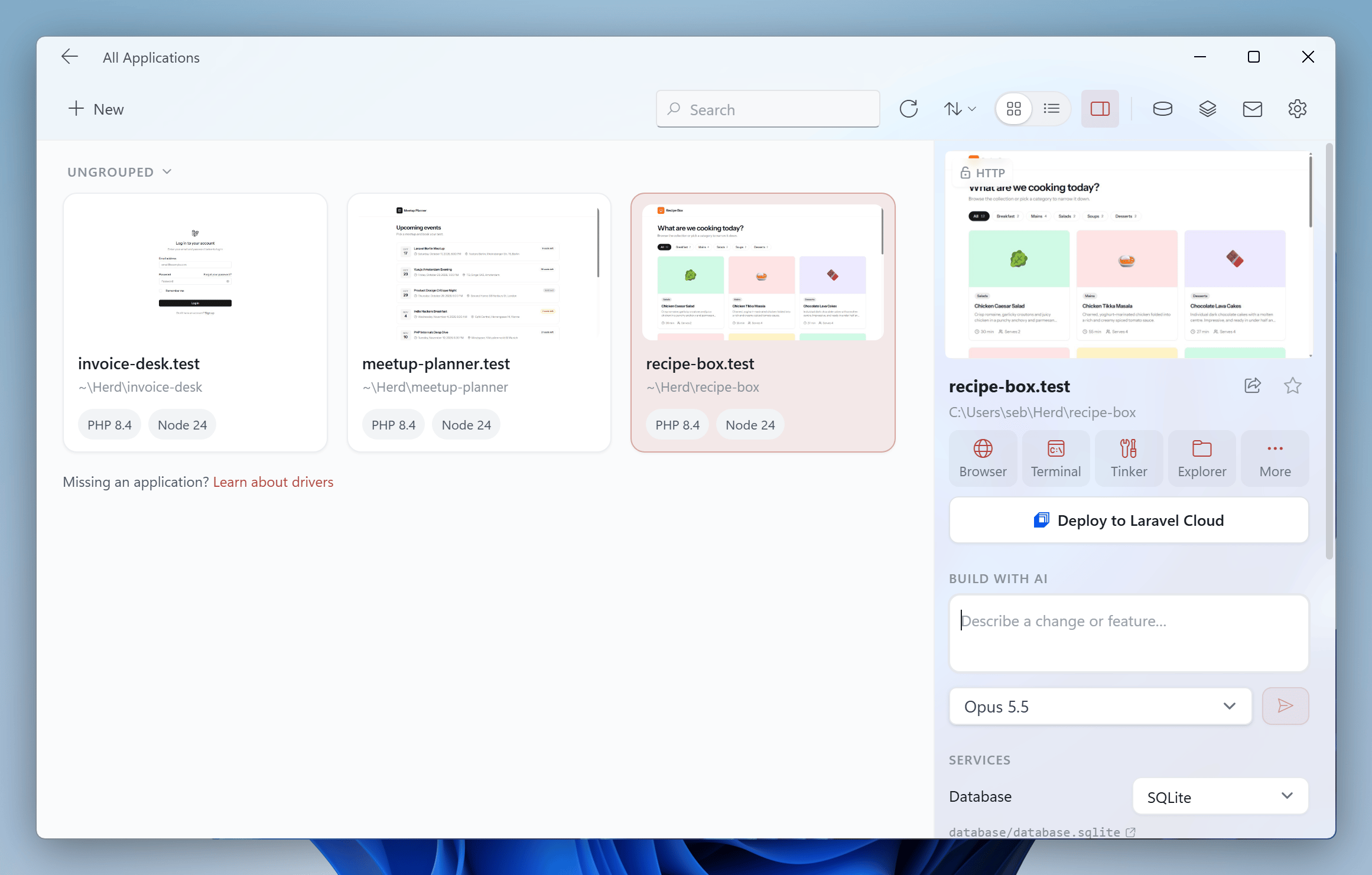 If the site is a git repository, you can check "Run in a new workspace". Herd then creates an isolated copy of the site on its own branch and domain so that several agents can work in parallel. Learn more about this in [Workspaces](/docs/windows/sites/workspaces).
## Fixing errors from your logs
When Herd Studio is enabled, the [Log Viewer](/docs/windows/debugging/logs) has a "Fix with AI" action for every log entry. Herd sends the entry with its stack trace and context to an agent, asks it to find the root cause in your codebase and fix it, and opens Herd Studio for the site.
## Dictation
You can dictate your prompts instead of typing them. Click the microphone button next to the prompt field in the new application window or in Herd Studio and start speaking. When you stop the recording, Herd inserts the text into your prompt.
Dictation runs completely on your PC using [Whisper](https://github.com/ggml-org/whisper.cpp). Your audio never leaves your PC. The first time you use dictation, Herd downloads the speech model.
You can select the dictation language and the speech model in the AI tab of the settings. By default, Herd uses your system language and the "Base" model. Larger models like "Small" or "Large v3 Turbo" are more accurate, especially for languages other than English, but they are bigger downloads and take longer to transcribe your recording.
If Herd can't access your microphone, allow desktop apps to use it in the Windows settings under Privacy & security → Microphone.
If the site is a git repository, you can check "Run in a new workspace". Herd then creates an isolated copy of the site on its own branch and domain so that several agents can work in parallel. Learn more about this in [Workspaces](/docs/windows/sites/workspaces).
## Fixing errors from your logs
When Herd Studio is enabled, the [Log Viewer](/docs/windows/debugging/logs) has a "Fix with AI" action for every log entry. Herd sends the entry with its stack trace and context to an agent, asks it to find the root cause in your codebase and fix it, and opens Herd Studio for the site.
## Dictation
You can dictate your prompts instead of typing them. Click the microphone button next to the prompt field in the new application window or in Herd Studio and start speaking. When you stop the recording, Herd inserts the text into your prompt.
Dictation runs completely on your PC using [Whisper](https://github.com/ggml-org/whisper.cpp). Your audio never leaves your PC. The first time you use dictation, Herd downloads the speech model.
You can select the dictation language and the speech model in the AI tab of the settings. By default, Herd uses your system language and the "Base" model. Larger models like "Small" or "Large v3 Turbo" are more accurate, especially for languages other than English, but they are bigger downloads and take longer to transcribe your recording.
If Herd can't access your microphone, allow desktop apps to use it in the Windows settings under Privacy & security → Microphone.