> ## Documentation Index
> Fetch the complete documentation index at: https://herd.laravel.com/docs/llms.txt
> Use this file to discover all available pages before exploring further.
# Laravel Reverb
# Setting up a Laravel Reverb instance
[Laravel Reverb](https://reverb.laravel.com/) is a first-party WebSocket server for Laravel applications. It's open source and uses the Pusher protocol, making it the first choice for real-time communication between client and server in Laravel applications. If you want to learn more about Reverb, check out [Real-time games with Laravel](https://laracasts.com/series/real-time-games-with-laravel) on Laracasts.
While you can install it as a package into your existing application, it often makes sense to have a dedicated WebSocket server for all your applications.
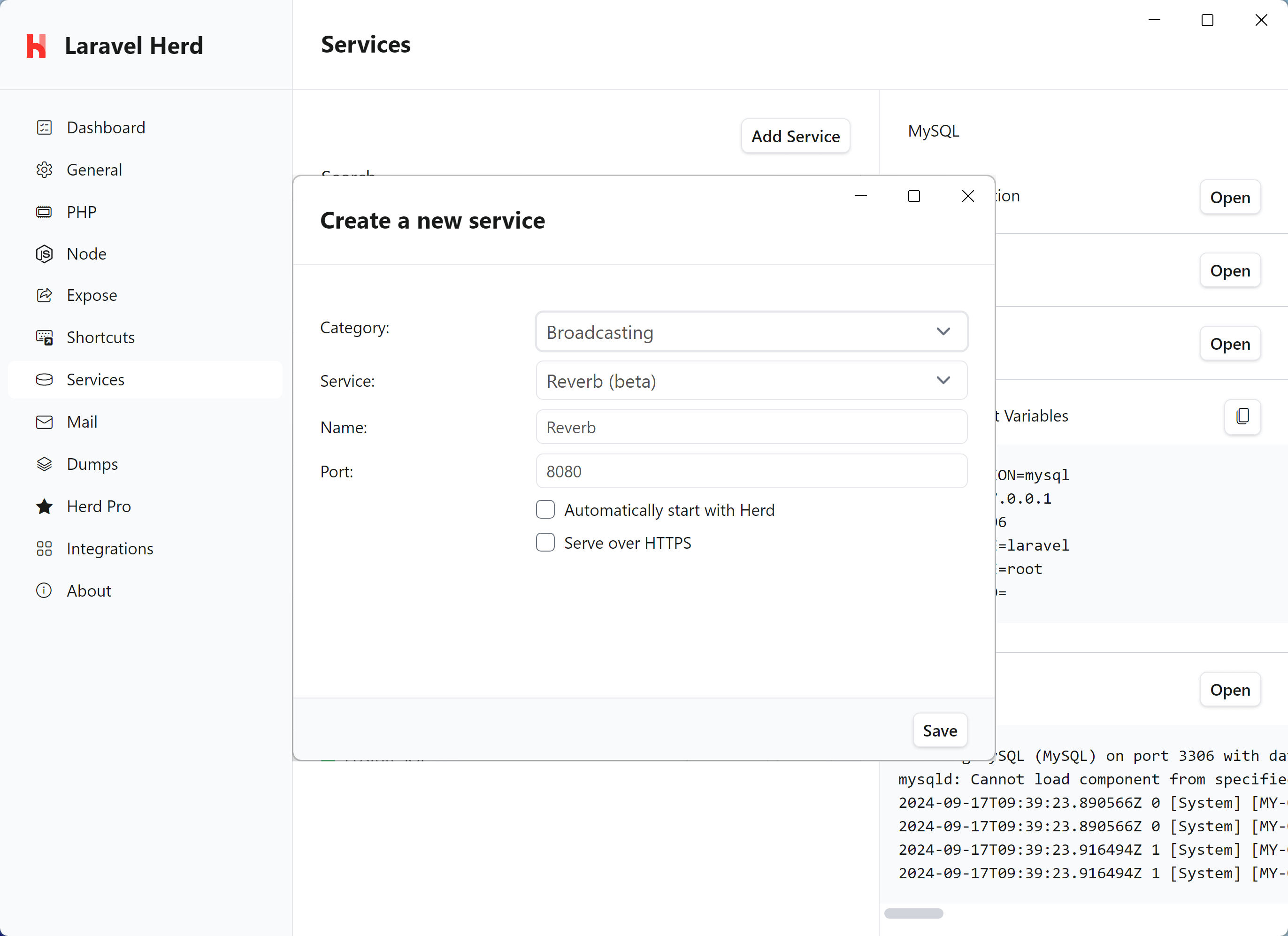
Herd provides a convenient way to set up a dedicated Reverb instance on your machine with a few clicks. It even comes secured with an optional TLS certificate.
 ## Connecting from your Laravel application
Laravel Reverb starts the WebSocket server on port `8080` but you can change it when creating a new service in case you're already running a different service on that port or want to run multiple instances in parallel.
After installing Reverb, you can use the following environment variables to configure the service for your application.
```bash theme={null}
REVERB_APP_ID=1001
REVERB_APP_KEY=laravel-herd
REVERB_APP_SECRET=secret
REVERB_HOST="0.0.0.0"
REVERB_PORT=8080
```
Check out the [Laravel Echo documentation](https://laravel.com/docs/11.x/broadcasting#client-reverb) to learn how to connect your application frontend to the Laravel Reverb server.
## Logs
Reverb constantly logs information to the running process, so if you are debugging Reverb connection,s you can open the output of the Reverb process by pressing the Open button in the logs area on the right side.
## Updates
Reverb uses composer and Herd supports updating Reverb to it's latest version via the Herd UI. Simply right click to open the context menu and select "update".
## Connecting from your Laravel application
Laravel Reverb starts the WebSocket server on port `8080` but you can change it when creating a new service in case you're already running a different service on that port or want to run multiple instances in parallel.
After installing Reverb, you can use the following environment variables to configure the service for your application.
```bash theme={null}
REVERB_APP_ID=1001
REVERB_APP_KEY=laravel-herd
REVERB_APP_SECRET=secret
REVERB_HOST="0.0.0.0"
REVERB_PORT=8080
```
Check out the [Laravel Echo documentation](https://laravel.com/docs/11.x/broadcasting#client-reverb) to learn how to connect your application frontend to the Laravel Reverb server.
## Logs
Reverb constantly logs information to the running process, so if you are debugging Reverb connection,s you can open the output of the Reverb process by pressing the Open button in the logs area on the right side.
## Updates
Reverb uses composer and Herd supports updating Reverb to it's latest version via the Herd UI. Simply right click to open the context menu and select "update".