> ## Documentation Index
> Fetch the complete documentation index at: https://herd.laravel.com/docs/llms.txt
> Use this file to discover all available pages before exploring further.
# Common Issues
# Resolving Common Issues
If you are on this site, we're sorry. We are working to create the most robust and easiest to use local development environment for Laravel – but Herd is still a tool early in its lifecycle, and we aren't there yet. On this page, you'll find common issues and a solution to resolve them.
If the documentation and the following tips don't resolve your issue, please head over to the [support section](/macos/troubleshooting/support).
## Herd Debug Logs
You can enable debug logs for Herd by starting it via the command line. The logs usually provide enough information so that you can either fix the problem yourself or create an issue in the [community repository](/macos/troubleshooting/support#community-support).
```
open /Applications/Herd.app --args --enable-logfile
```
This command writes a `Herd_Debug.log` file to your log directory at `~/Library/Application Support/Herd/Log`.
## Bad Gateway
This can happen if the nginx configuration for your site is broken, or PHP FPM did not start properly.
You can find the configuration files at the following path:
```
/Users/seb/Library/Application Support/Herd/config/valet/Nginx
```
A good practice to fix the config file for a single site is by isolating the site to a specific PHP version or securing it with a TLS certificate. You can always switch back to the previous PHP version or unsecure the site but all these commands regenerate the configuration file to fix the issue.
If this does not help, please create an issue with the broken config file in the [community repository](/macos/troubleshooting/support#community-support).
## 404 Errors
If Herd can not properly detect a driver for your site or can't find the site at all, Herd displays a custom 404 error page. This error page mostly has a useful hint how to fix the problem but it case it does not, the most common problem is that the directory of the project includes `www` in the name.
Herd strips `www` from directory names so that all sites are accessible via their domain with and without `www` prefix.
The solution to this is renaming the directory from `www.your-site.com` to `your-site.com`. This allows yout to access the site at `http://your-site.com.test`. If the site had specific configurations, you need to apply them again after this change because Herd treats this site as a new one.
## DNS Errors
DNS errors happen when either dnsmasq isn't running or when there is a different local DNS server installed on your machine.
Please make sure that dnsmasq is running and there are no errors in the logs. Dnsmasq gets started by the background service of Herd, please go to [the helper service isn't running](#the-helper-service-isnt-running) to resolve the issue.
If there's still a problem, another instance of dnsmasq could be running on your system. This mostly happens if you migrate from Valet to Herd and Herd isn't able to remove the brew service. You can run `brew services list` to see if Homebrew still manages a dnsmasq instance and `brew services stop dnsmasq` to shut it down. After that, restart all Herd services and you should be good to go.
**VPN clients may interfere with DNS resolution**
Some VPN clients install macOS Network Extensions which intercept DNS traffic, even if the VPN connection itself is not active.
This may prevent Herd from resolving `.test` domains correctly via its internal `dnsmasq` resolver.
When your browser returns `ERR_CONNECTION_RESET` or `curl` shows `Recv failure: Connection reset by peer`, it is likely that a VPN client is interfering with DNS resolution.
To resolve this issue, you can try the following steps:
* Fully uninstall the VPN client if not required.
* Alternatively, disable any "DNS Proxy" or "DNS Intercept" options in the VPN configuration.
* After uninstalling, reboot your Mac to clear all DNS overrides.
You can verify whether a VPN system extension is active using:
```bash theme={null}
systemextensionsctl list
```
Look for entries such as:
`com.vpnnet.vpnclient.macos.vpn.nwestension`
## Herd shows the welcome screen on every start
This means that the helper service isn't running in the background. Please follow [The helper service isn't running](#the-helper-service-isnt-running) to resolve the issue.
## The helper service isn't running
Herd uses a helper service that runs with admin permissions to start dnsmasq and nginx. This comes with the benefit that there are no admin permissions required for the main application and if anyone finds a way to exploit Herd, they can not compromise your system.
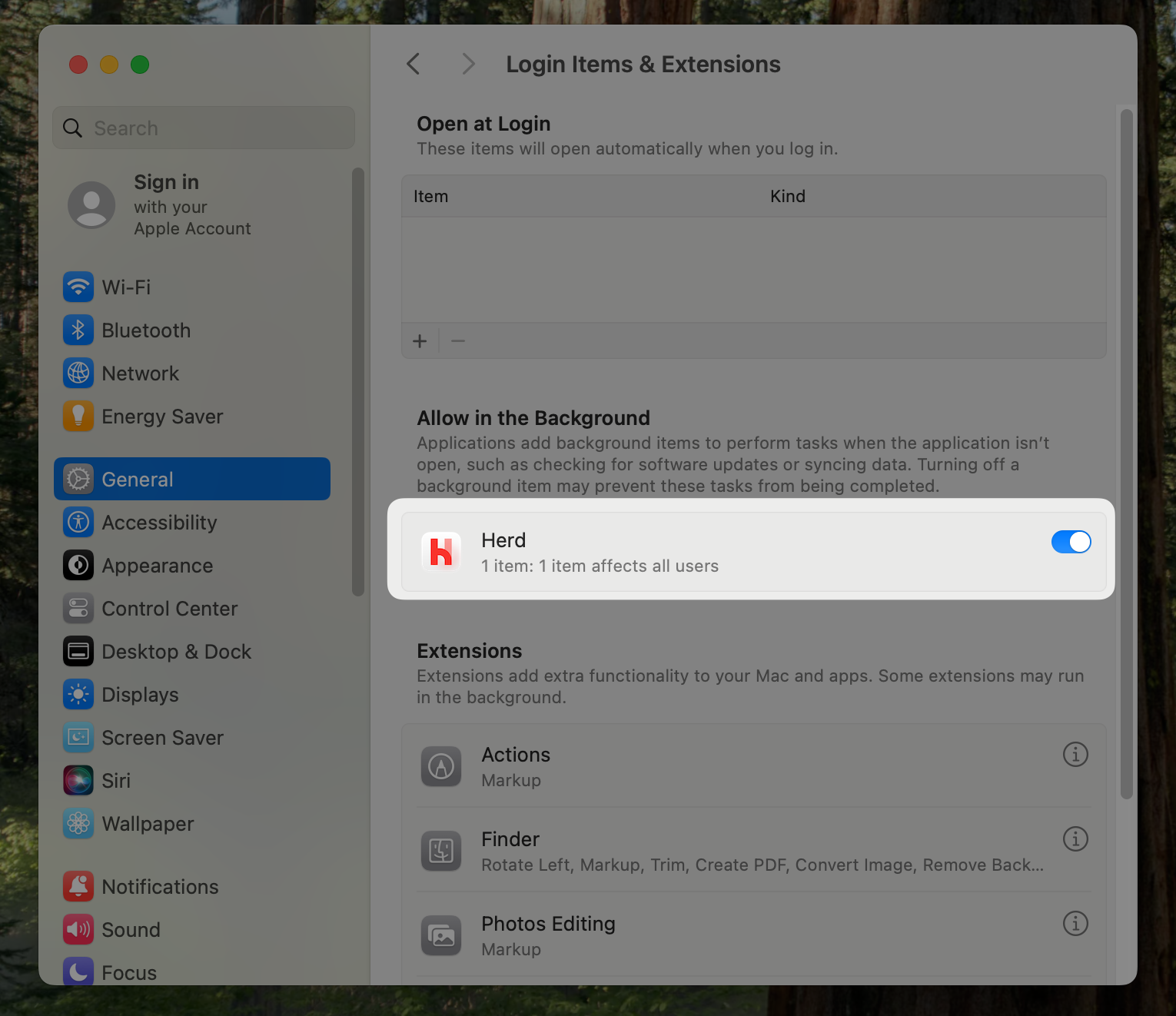 To allow the Herd helper service to run in the background, please go to the "Login Items" section of your system settings and make sure that either `Herd` or `Beyond Code GmbH` ([us](https://beyondcode.com)) are allowed to run in the background.