> ## Documentation Index
> Fetch the complete documentation index at: https://herd.laravel.com/docs/llms.txt
> Use this file to discover all available pages before exploring further.
# Manage Node.js
# Managing Node.js versions
Herd ships with [nvm](https://github.com/nvm-sh/nvm), the Node version manager which allows the management of multiple [Node.js](https://nodejs.org/) versions on your machine. By default, Herd automatically installs the latest available version of Node.js for you.
Herd requires a specific nvm version and can't use existing nvm installations. If you are migrating from a previous nvm setup, please consult the [Troubleshooting](#troubleshooting) section if it doesn't work as expected.
## Via the GUI
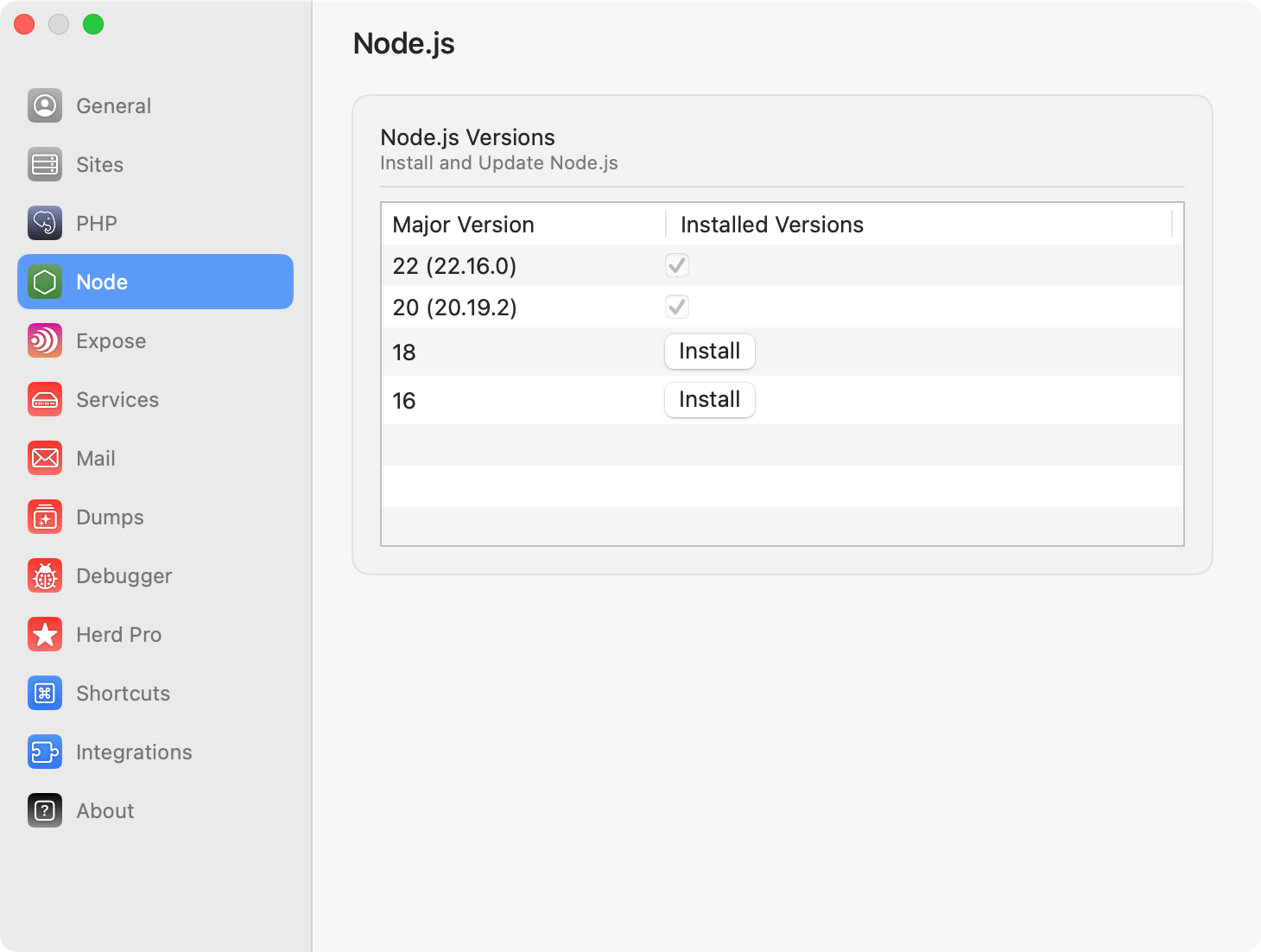
You may install and update the Node.js versions on your machine via the Herd GUI. Simply click on the button and Herd will take care of the rest.
 ## Via the CLI
You can use `nvm` on your command line to install, update and switch between Node.js versions any time. To switch to a different version, simply enter `nvm use VERSION` and nvm runs all required commands to change the version and make it accessible in your terminal.
For more information about nvm, take a look at the [official nvm documentation](https://github.com/nvm-sh/nvm?tab=readme-ov-file#usage).
### Commands that you might use regularly
```bash theme={null}
# Install node 20
nvm install 20
# Uninstall node 20
nvm uninstall 20
# Switch to node 20
nvm use 20
## Display all commands
nvm help
```
# Per-site Node versions
By default, the Node version available via CLI will be the most recent one.
However, if you need to support different Node.js versions for different sites, you may use the isolated Node functionality.
This configures Herd to use the specified Node version for the site, regardless of the global Node version.
If you use oh-my-zsh, Herd automatically detects the Node.js version to use when changing directories via your terminal.
## Via the CLI
You may use the `herd isolate-node` command to specify which Node.js version a particular folder should use. The `isolate-node` command configures
Herd/nvm to use the specified Node.js version for the site located in your current working directory:
```bash theme={null}
cd ~/Herd/example-site
herd isolate-node 21
```
If your site name does not match the name of the directory that contains it, you may specify the site name using the `--site` option:
```bash theme={null}
herd isolate-node 21 --site="site-name"
```
You can be as specific as you want, when isolating Node.js versions:
```bash theme={null}
herd isolate-node 16.13.2
```
You may execute the `isolated-node` command to display a list of all of your isolated sites and their Node.js versions:
```bash theme={null}
herd isolated-node
```
To revert a site back to the globally installed Node.js version, you may invoke the `unisolate-node` command from the site's root directory:
```bash theme={null}
herd unisolate-node
```
## Updating Node.js
If you open the Node settings, Herd checks if there are new versions available and displays an update button next to every version that you can update.
## Via the CLI
You can use `nvm` on your command line to install, update and switch between Node.js versions any time. To switch to a different version, simply enter `nvm use VERSION` and nvm runs all required commands to change the version and make it accessible in your terminal.
For more information about nvm, take a look at the [official nvm documentation](https://github.com/nvm-sh/nvm?tab=readme-ov-file#usage).
### Commands that you might use regularly
```bash theme={null}
# Install node 20
nvm install 20
# Uninstall node 20
nvm uninstall 20
# Switch to node 20
nvm use 20
## Display all commands
nvm help
```
# Per-site Node versions
By default, the Node version available via CLI will be the most recent one.
However, if you need to support different Node.js versions for different sites, you may use the isolated Node functionality.
This configures Herd to use the specified Node version for the site, regardless of the global Node version.
If you use oh-my-zsh, Herd automatically detects the Node.js version to use when changing directories via your terminal.
## Via the CLI
You may use the `herd isolate-node` command to specify which Node.js version a particular folder should use. The `isolate-node` command configures
Herd/nvm to use the specified Node.js version for the site located in your current working directory:
```bash theme={null}
cd ~/Herd/example-site
herd isolate-node 21
```
If your site name does not match the name of the directory that contains it, you may specify the site name using the `--site` option:
```bash theme={null}
herd isolate-node 21 --site="site-name"
```
You can be as specific as you want, when isolating Node.js versions:
```bash theme={null}
herd isolate-node 16.13.2
```
You may execute the `isolated-node` command to display a list of all of your isolated sites and their Node.js versions:
```bash theme={null}
herd isolated-node
```
To revert a site back to the globally installed Node.js version, you may invoke the `unisolate-node` command from the site's root directory:
```bash theme={null}
herd unisolate-node
```
## Updating Node.js
If you open the Node settings, Herd checks if there are new versions available and displays an update button next to every version that you can update.
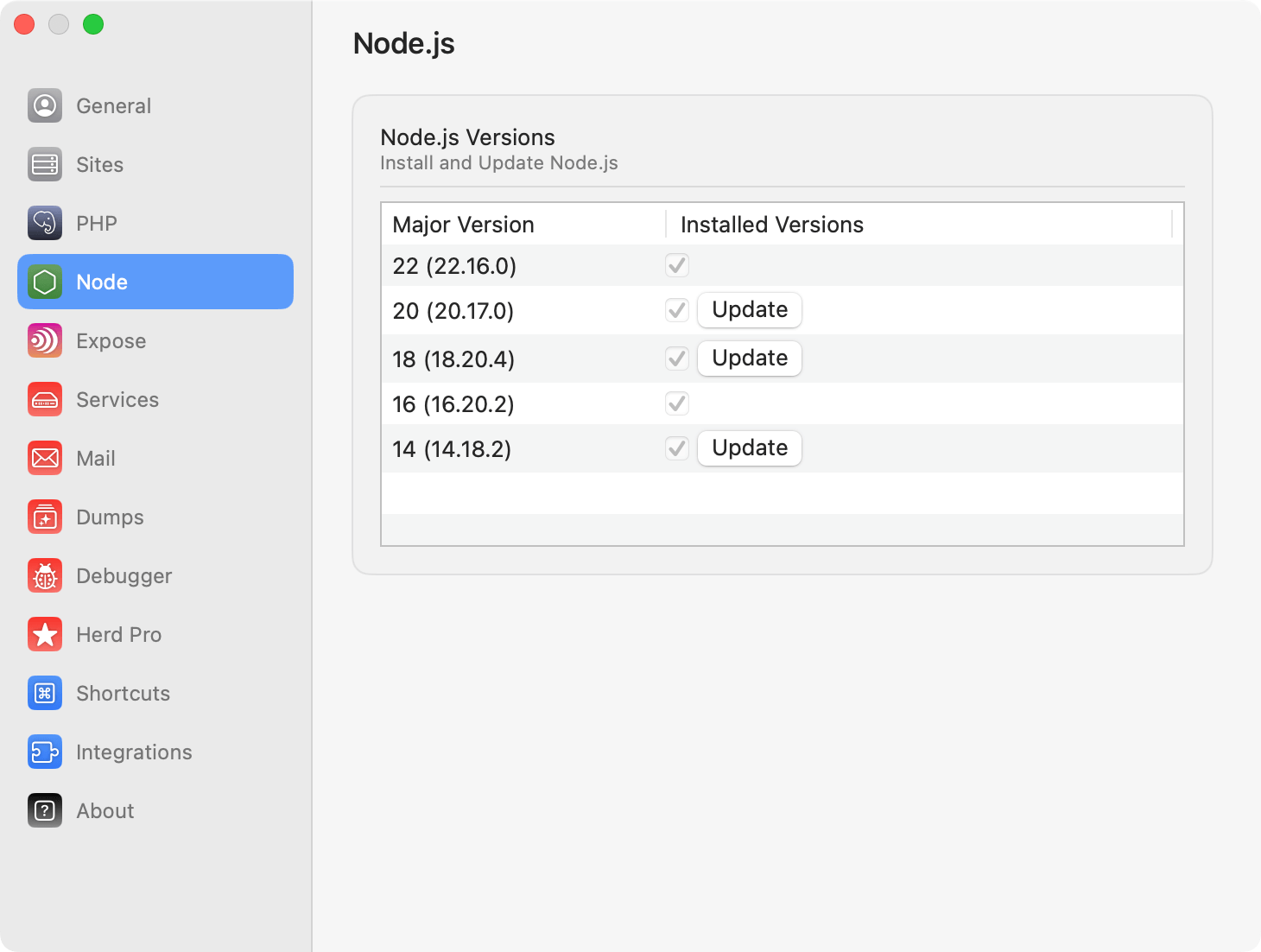 Herd uses nvm under the hood and this means that existing versions are kept when pressing the update button. The update downloads and installs the latest version and makes this one the preferred version for the related major version.
## Uninstalling Node
If you want to uninstall a specific version, either consult the [official nvm documentation](https://github.com/nvm-sh/nvm) or run the uninstall command from your terminal.
```
nvm uninstall VERSION
```
You can verify which versions you have with the command `nvm list`. So if you want to uninstall node 18.20.4, run `nvm uninstall 18.20.4`.
## Troubleshooting
Herd parses command output to determine your current Node.js version. If it can't parse the output because there is output that it doesn't understand, or you are using an unsupported shell, it displays `Unknown` for your node version in the sites list. Herd is an opinionated development environment that relies on bash or zsh, so other shells can lead to errors.
There are situations where Herd can not install nvm and keeps displaying the install button for nvm in the settings. This can happen if there are traces of a previous install on your system – this could be a broken node symlink or nvm paths in your `.zshrc` file.
Herd uses nvm under the hood and this means that existing versions are kept when pressing the update button. The update downloads and installs the latest version and makes this one the preferred version for the related major version.
## Uninstalling Node
If you want to uninstall a specific version, either consult the [official nvm documentation](https://github.com/nvm-sh/nvm) or run the uninstall command from your terminal.
```
nvm uninstall VERSION
```
You can verify which versions you have with the command `nvm list`. So if you want to uninstall node 18.20.4, run `nvm uninstall 18.20.4`.
## Troubleshooting
Herd parses command output to determine your current Node.js version. If it can't parse the output because there is output that it doesn't understand, or you are using an unsupported shell, it displays `Unknown` for your node version in the sites list. Herd is an opinionated development environment that relies on bash or zsh, so other shells can lead to errors.
There are situations where Herd can not install nvm and keeps displaying the install button for nvm in the settings. This can happen if there are traces of a previous install on your system – this could be a broken node symlink or nvm paths in your `.zshrc` file.