> ## Documentation Index
> Fetch the complete documentation index at: https://herd.laravel.com/docs/llms.txt
> Use this file to discover all available pages before exploring further.
# MinIO
# Set up MinIO
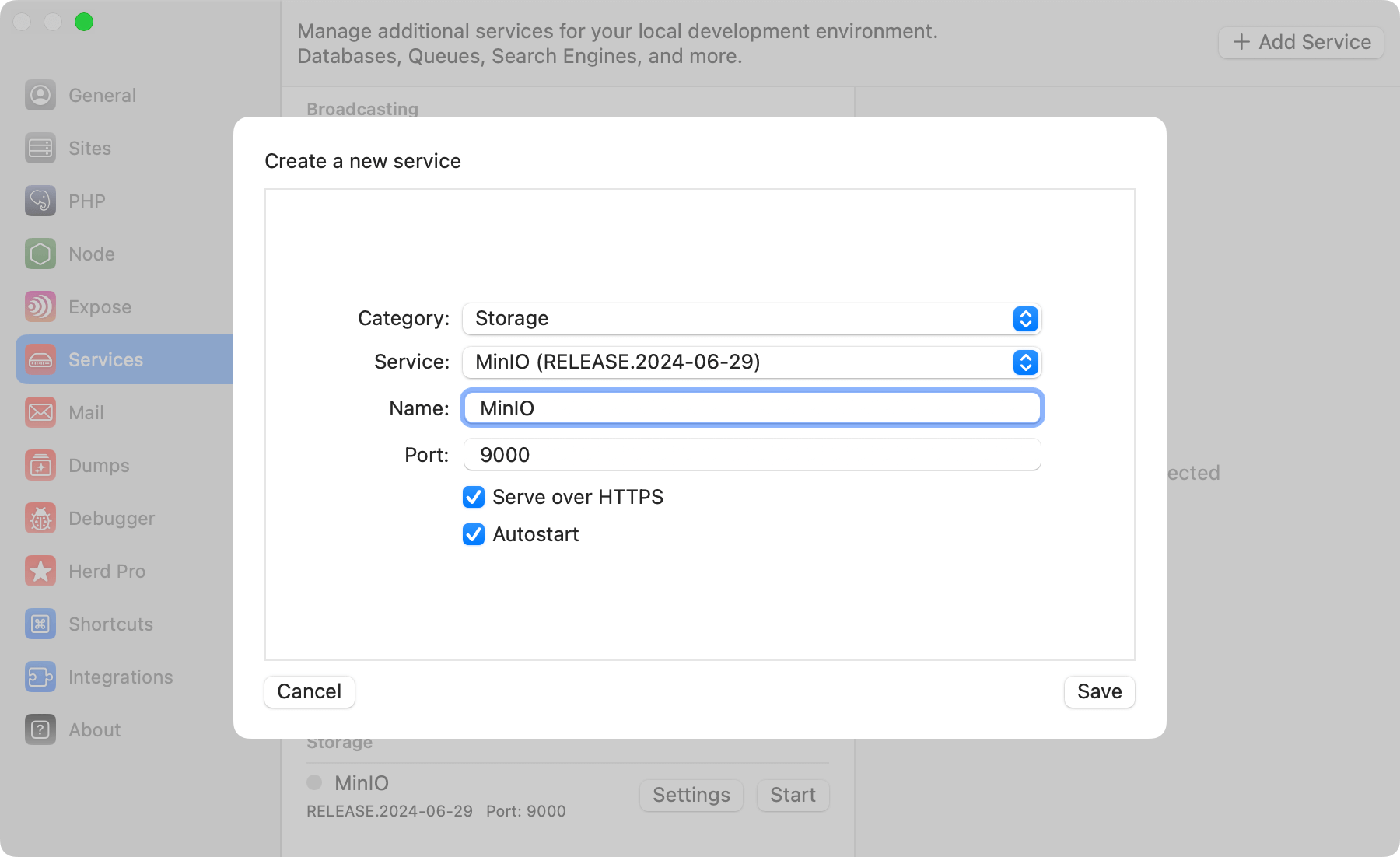
MinIO is an open-source, S3 compatible object storage and works perfectly if you want to use the same APIs locally that you use on your production environment. You can set up MinIO as a Herd service and log into its dashboard to create your first storage bucket with the same credentials that you use as environment variables.
 ## Configuration
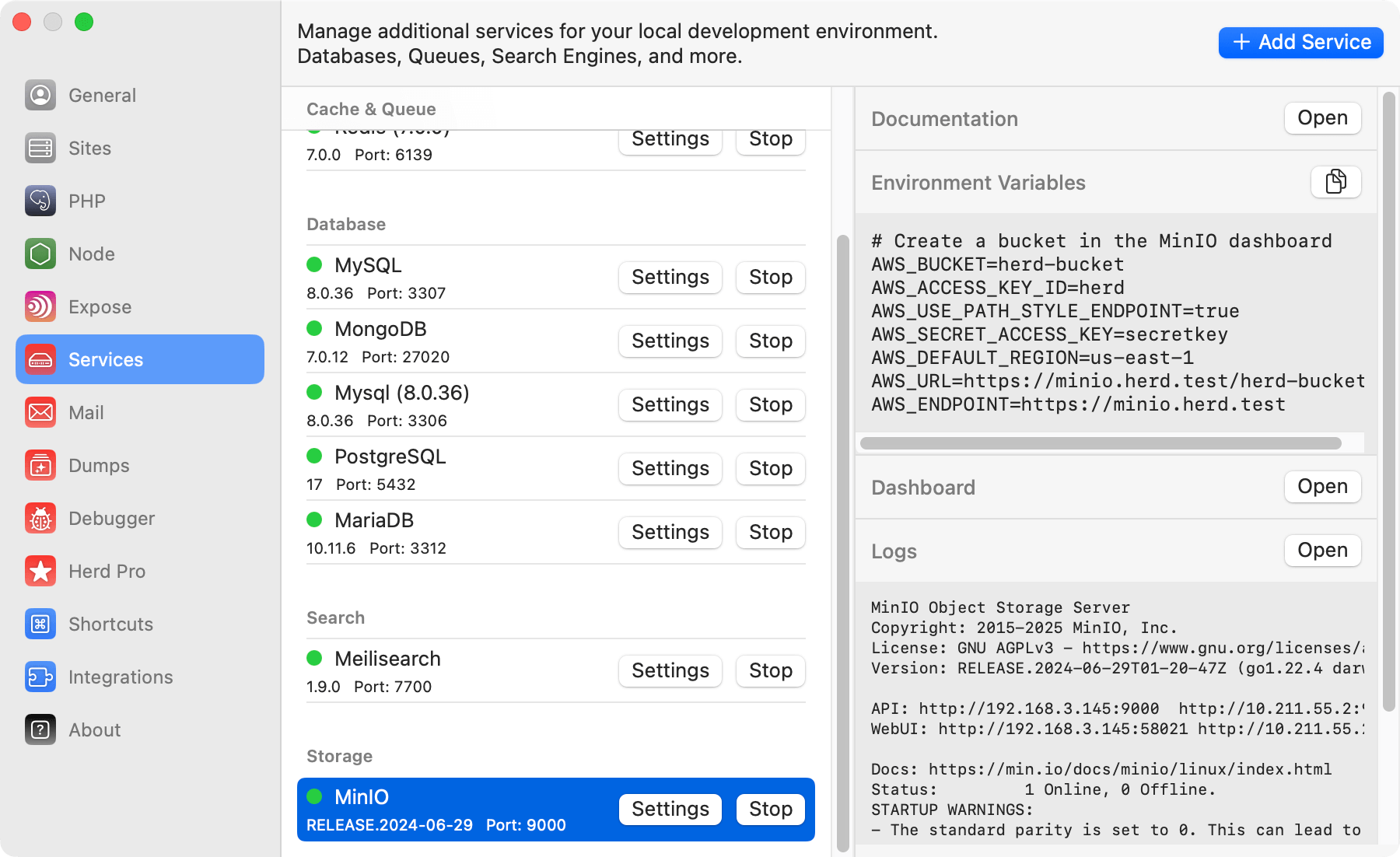
Before you can connect your application to MinIO, you need to create a first bucket within the dashboard. The easiest way to access the dashboard or view the logs of the service is via the Herd service configuration.
## Configuration
Before you can connect your application to MinIO, you need to create a first bucket within the dashboard. The easiest way to access the dashboard or view the logs of the service is via the Herd service configuration.
 ## Dashboard
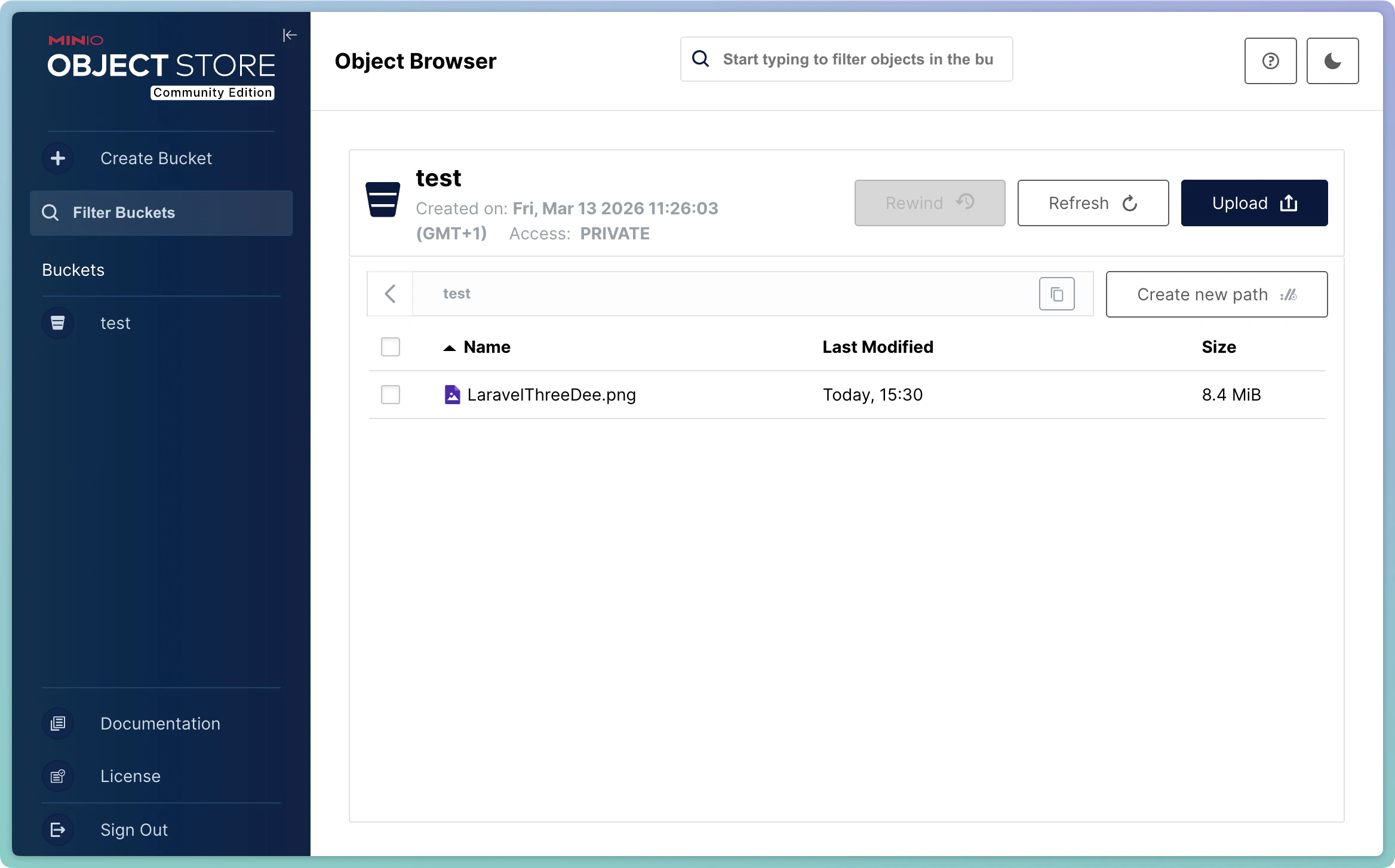
You can access the MinIO dashboard via `http://localhost:PORT` or by using the dashboard button in the services list. Log in with the `AWS_ACCESS_KEY_ID` and `AWS_SECRET_ACCESS_KEY` to create your first bucket and use the object storage like in your production environment.
## Dashboard
You can access the MinIO dashboard via `http://localhost:PORT` or by using the dashboard button in the services list. Log in with the `AWS_ACCESS_KEY_ID` and `AWS_SECRET_ACCESS_KEY` to create your first bucket and use the object storage like in your production environment.
 ## Environment Variables
After setting the name, port, and autostart options and starting up the service, please log into the dashboard and create a bucket to be able to upload files.
You can then adjust your `.env` file in order to connect to your local MinIO service.
```env theme={null}
AWS_BUCKET=herd-bucket # Your bucket name
AWS_ACCESS_KEY_ID=herd
AWS_SECRET_ACCESS_KEY=secretkey
AWS_USE_PATH_STYLE_ENDPOINT=true
AWS_URL=http://localhost:9000/YOUR-BUCKET-NAME
AWS_ENDPOINT=http://localhost:9000
```
You can find additional information about configuring MinIO with Laravel in the [Laravel documentation](https://laravel.com/docs/11.x/filesystem#amazon-s3-compatible-filesystems).
## MinIO CLI (mc)
Recent versions of MinIO have removed bucket management from the web dashboard. To create and manage buckets, use the official MinIO Client (`mc`).
Install it via Homebrew:
```bash theme={null}
brew install minio/stable/mc
```
Then set up an alias pointing to your Herd MinIO service:
```bash theme={null}
mc alias set herd https://minio.herd.test herd secretkey
```
Replace `minio` in the URL with the name of your MinIO service (as shown in Herd) and adjust the credentials if you changed them.
Common commands:
```bash theme={null}
mc mb herd/my-bucket # Create a bucket
mc ls herd # List all buckets
mc ls herd/my-bucket # List files in a bucket
mc cp file.txt herd/my-bucket/ # Upload a file
```
For the full command reference, see the [MinIO Client documentation](https://github.com/minio/mc).
## Environment Variables
After setting the name, port, and autostart options and starting up the service, please log into the dashboard and create a bucket to be able to upload files.
You can then adjust your `.env` file in order to connect to your local MinIO service.
```env theme={null}
AWS_BUCKET=herd-bucket # Your bucket name
AWS_ACCESS_KEY_ID=herd
AWS_SECRET_ACCESS_KEY=secretkey
AWS_USE_PATH_STYLE_ENDPOINT=true
AWS_URL=http://localhost:9000/YOUR-BUCKET-NAME
AWS_ENDPOINT=http://localhost:9000
```
You can find additional information about configuring MinIO with Laravel in the [Laravel documentation](https://laravel.com/docs/11.x/filesystem#amazon-s3-compatible-filesystems).
## MinIO CLI (mc)
Recent versions of MinIO have removed bucket management from the web dashboard. To create and manage buckets, use the official MinIO Client (`mc`).
Install it via Homebrew:
```bash theme={null}
brew install minio/stable/mc
```
Then set up an alias pointing to your Herd MinIO service:
```bash theme={null}
mc alias set herd https://minio.herd.test herd secretkey
```
Replace `minio` in the URL with the name of your MinIO service (as shown in Herd) and adjust the credentials if you changed them.
Common commands:
```bash theme={null}
mc mb herd/my-bucket # Create a bucket
mc ls herd # List all buckets
mc ls herd/my-bucket # List files in a bucket
mc cp file.txt herd/my-bucket/ # Upload a file
```
For the full command reference, see the [MinIO Client documentation](https://github.com/minio/mc).